Organization Manager
Invite the people of the Organization, group them in Teams and keep their accounts up to date.
You manage the people of your Organization: you invite them, give them their roles, group them in Teams, keep their details up to date and remove them from the Organization when they leave. You also choose the Tracks of the Catalog your Organization follows. You do not see the results of the Learners: only Mentors do.
On a development instance, sign in as manager@example.com from the development sign-in page to follow along.
-
Open the accounts
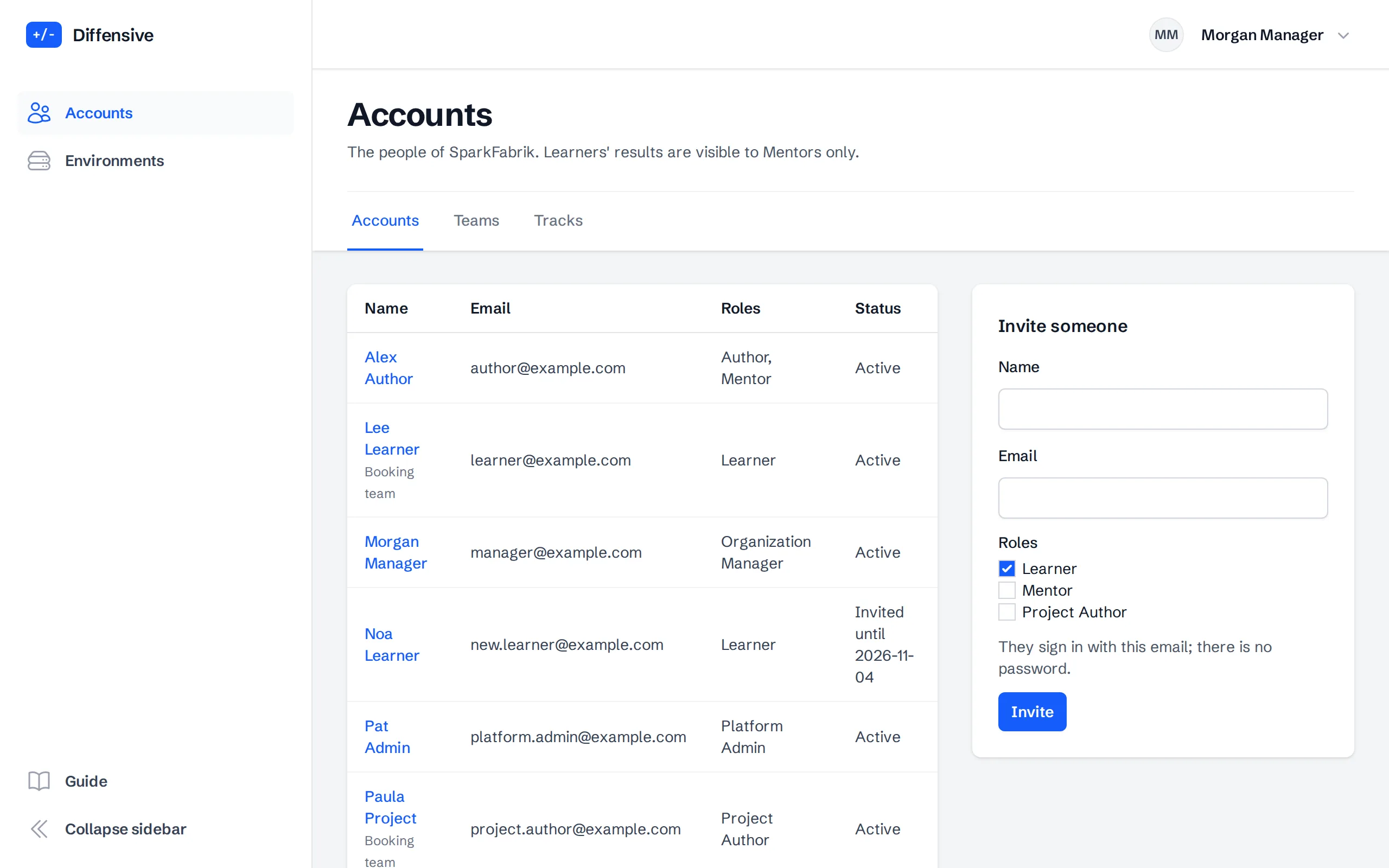
Choose Accounts in the menu. The list shows every account of the Organization with its email, its roles and its status: Invited until the expiry date of the Invitation, Invitation expired if nobody signed in within fourteen days, then Active after the first sign-in.
-
Invite someone
Fill in Invite someone with the name and the work email of the person, and choose their roles:
- Learner: practices on the Exercises.
- Mentor: decides the Mentor Queue and follows the Learners.
- Project Author: brings the real projects of the Organization and writes their Exercises.
There is no password: the person signs in with the identity provider of the company, using the email of the Invitation. The first sign-in links the account to them. If the person already has an Individual account with that email, the Invitation attaches to that account instead of creating one: the person sees an Invitation page, where they choose whether to share their individual history with you, then Accept or Decline. Their Mentors see that work only while they share it. The email of a member of any Organization cannot be invited. While they are a member, they sign in only with that Google account of the Organization: disabling it in your Google Workspace ends their access.
The Invitation lasts fourteen days. If it expires, open the account and choose Renew the invitation: the person has fourteen more days. An Invitation attached to an existing account has no account page: the list shows it as invited, with Renew and Withdraw next to it.
-
Group people in Teams
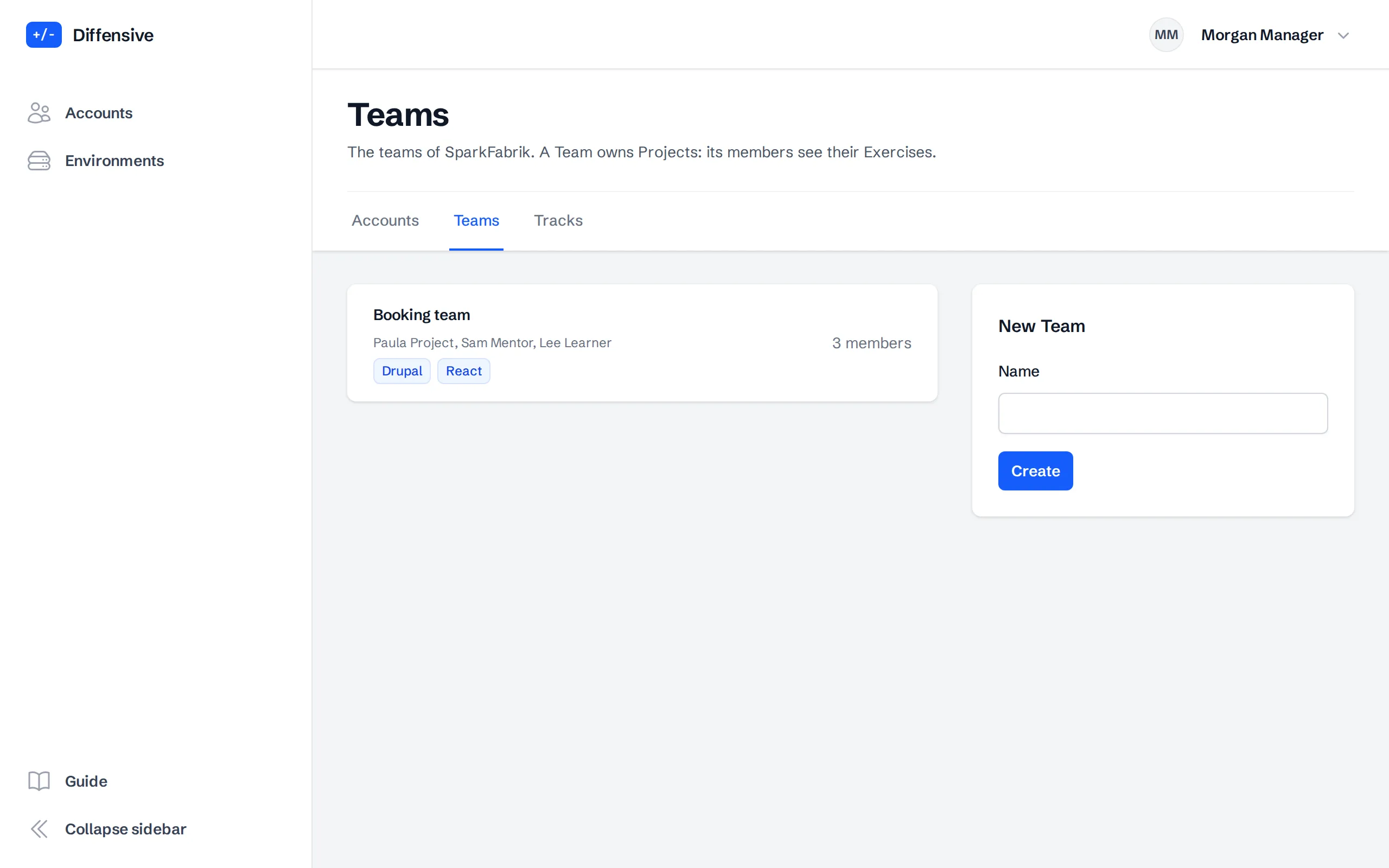
A Team is a group of people who work together, for example on the sites of one customer. It owns Projects: its members see their Exercises.
Open Teams, next to Accounts, and create one with New Team.
-
Choose the members of a Team
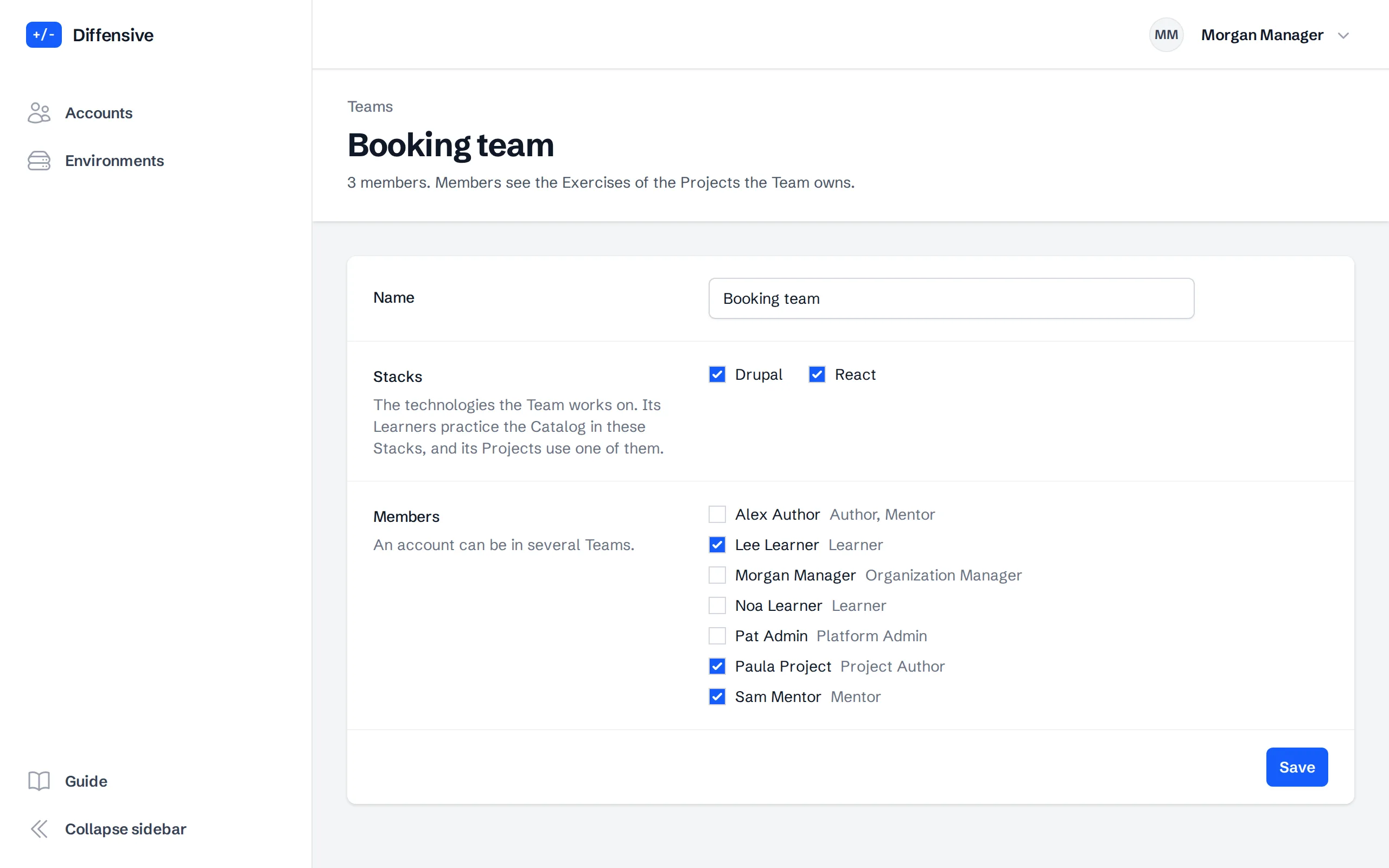
Open a Team to rename it, tick the Stacks it works on and tick its members: Learners, Mentors and Project Authors. Save applies the change at once. The Learners now see the Exercises of the Team's Projects, and practice the Catalog in the Team's Stacks. An account can be in several Teams.
A Learner who is in no Team with a Stack sees no Catalog Exercise, only a notice that asks them to join one.
-
Choose the Tracks
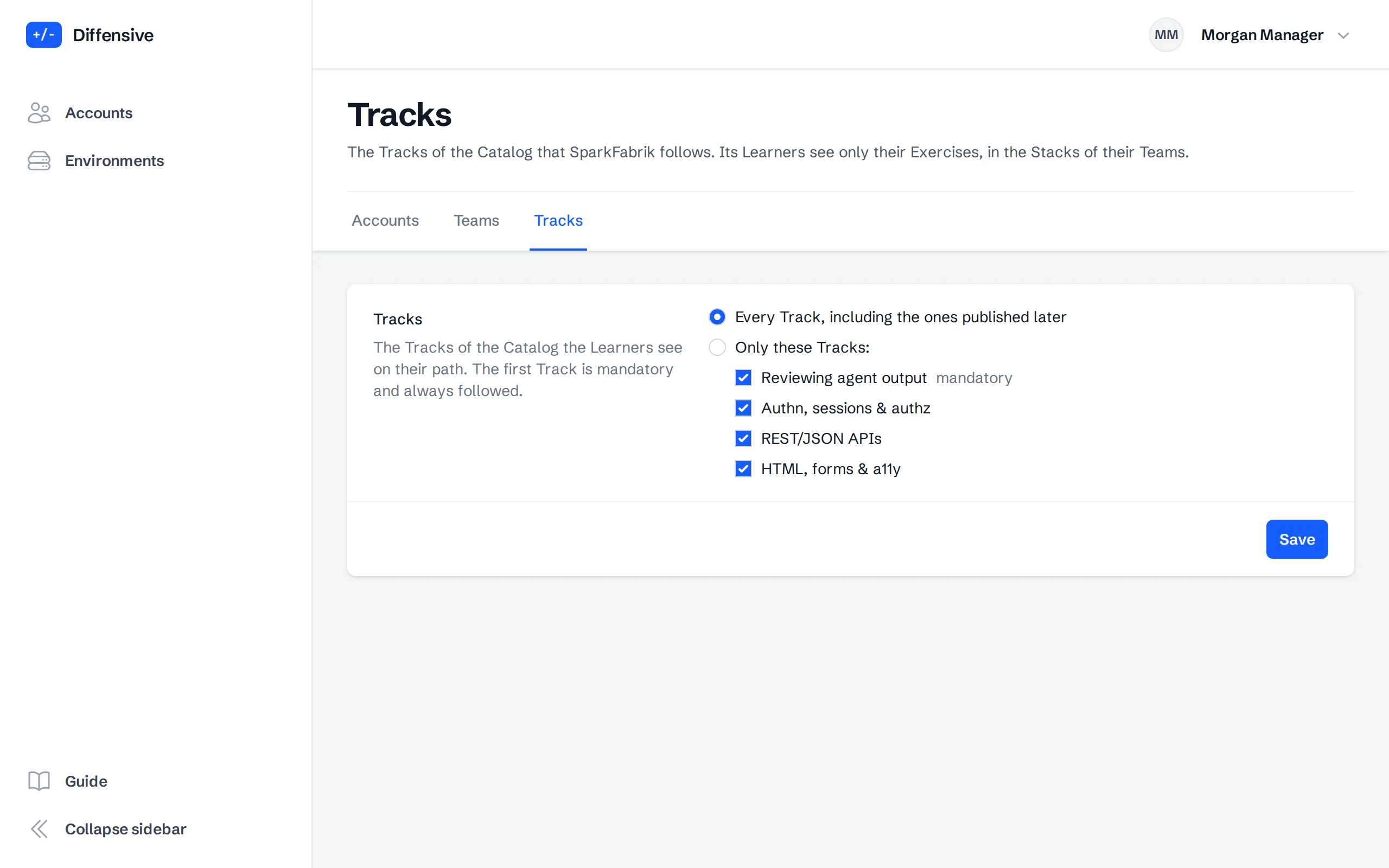
Open Tracks, next to Teams. The Catalog is written once for every Organization, but yours follows only the Tracks that matter to it: Every Track, including the ones published later, or Only these Tracks. The first Track is mandatory and always followed. Save applies the change at once: the Learners see the chosen Tracks on their path.
-
Keep the details up to date
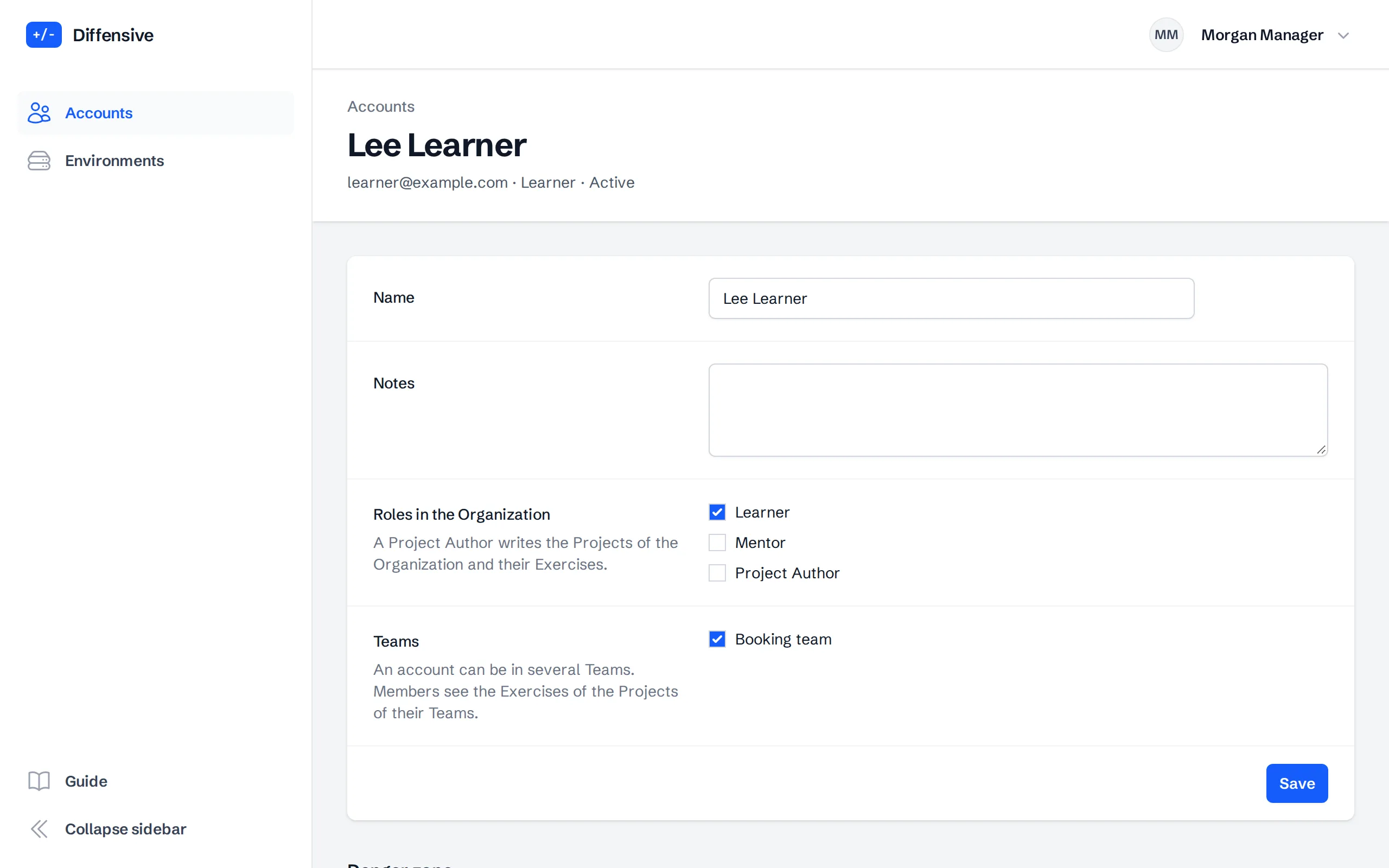
Open an account to change the name, the notes, the roles in the Organization and the Teams it is in. Save applies the changes at once.
When someone leaves, Remove from the Organization at the bottom of the same page: their account turns into an individual one, they go on as an Individual Learner with their Catalog progress and lose the Projects of the Organization. They sign in with a personal Google account they linked; the Google account of the Organization is unlinked. A blocked member can be removed too and stays blocked. While an invitation is still pending, Withdraw the invitation there instead: the invited account is removed and its email is free again. Withdraw in the list removes an Invitation attached to an existing account and leaves that account as it is.