Mentor
Decide the Findings the Answer Key cannot correct and follow the Learners of the Organization.
You are a senior of the Organization, or of the platform. The Answer Key corrects most Reviews on its own: you decide what it cannot, and you follow the Learners of the Organization. You see their progress and manage their Exercises, but not their personal details.
On a development instance, sign in as mentor@example.com from the development sign-in page to follow along.
-
Open the Mentor Queue
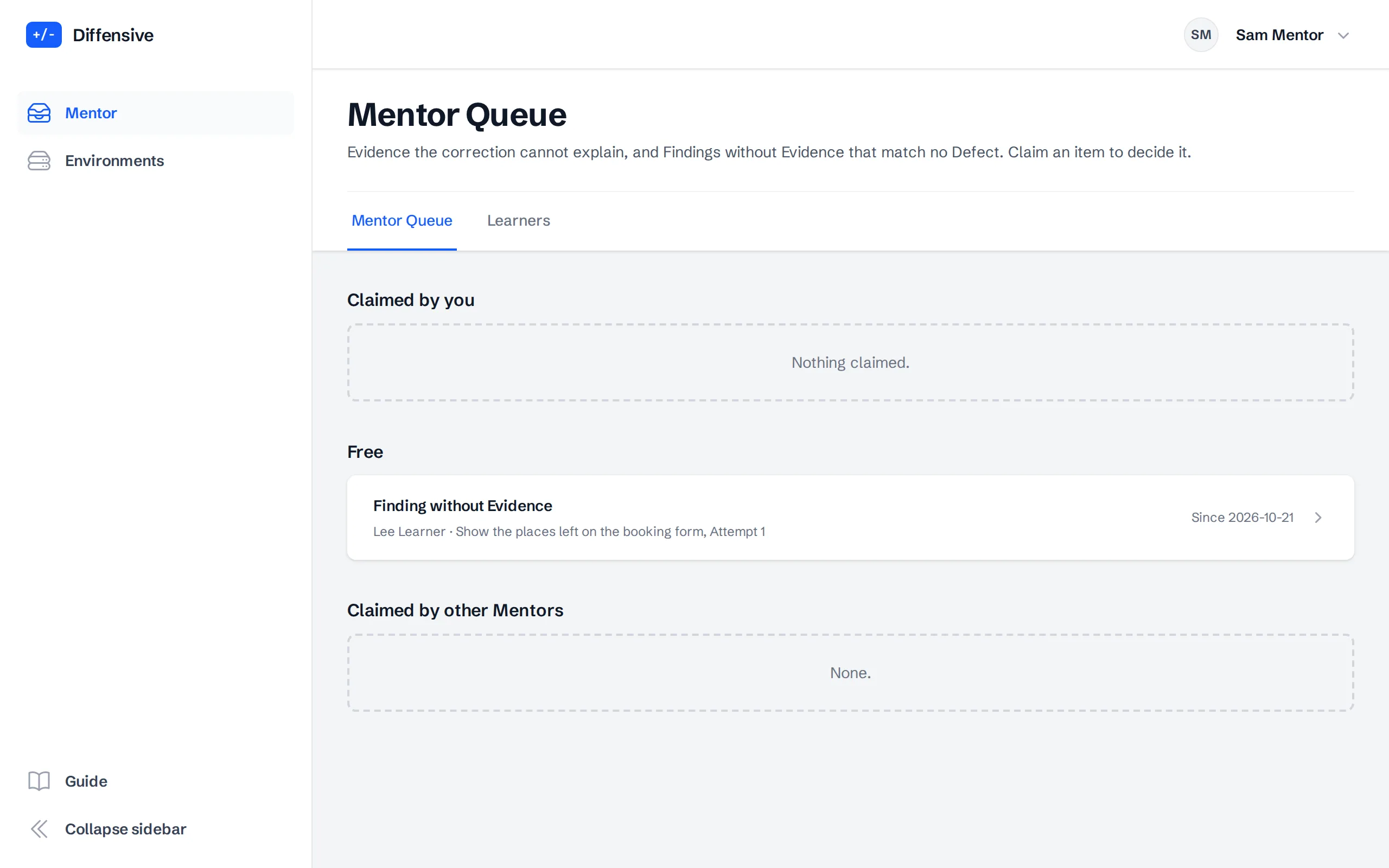
Choose Mentor in the menu. The Mentor Queue is shared by the Mentors of the Organization and holds two kinds of items:
- an Evidence the correction cannot explain: it fails on the Proposal, but no Defect of the Answer Key accounts for it;
- a Finding without Evidence that matches no Defect: its justification deserves feedback.
Items are grouped as Claimed by you, Free and Claimed by other Mentors.
A Learner who joined the Organization after practicing alone can share that individual history with it. While they share it, its Findings that need a Mentor are in the queue. When they stop sharing it, those items disappear from the queue and cannot be claimed.
-
Claim an item
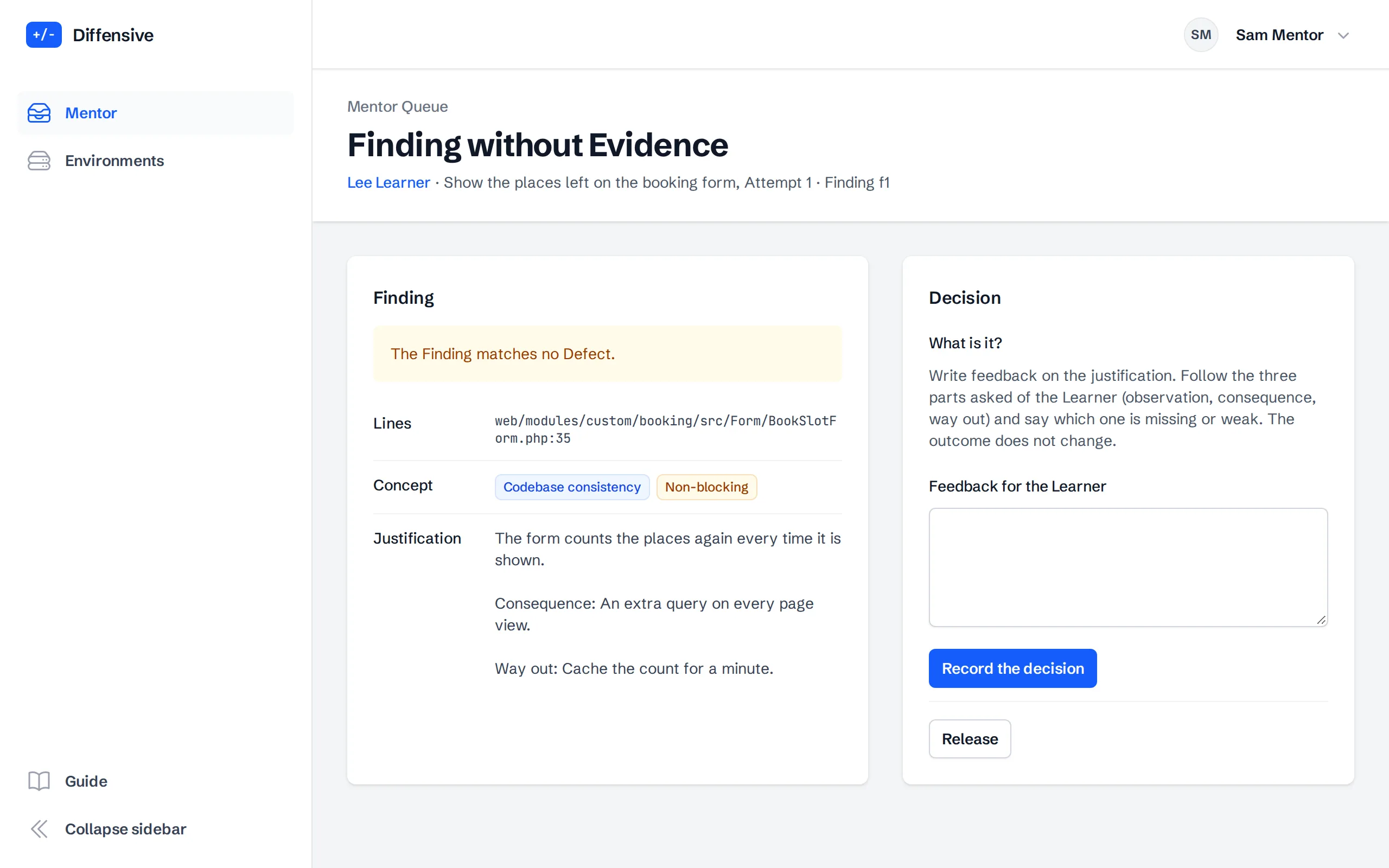
Open a free item and choose Claim: from then on only you decide it, and the other Mentors see who holds it. The page shows the Finding as the Learner wrote it: the lines, the Concept, the Severity, the justification and, when there is one, the Evidence with the output of each run.
-
Decide and write feedback
For an Evidence the correction cannot explain, say what it is:
- The Evidence is broken: explain why to the Learner.
- It proves a Defect of the Answer Key: choose the Defect, and the Attempt is corrected again.
- It proves a new Defect: the Defect reaches the Authors of the Exercise, who add it to the Proposal. The Learner is credited with discovering it.
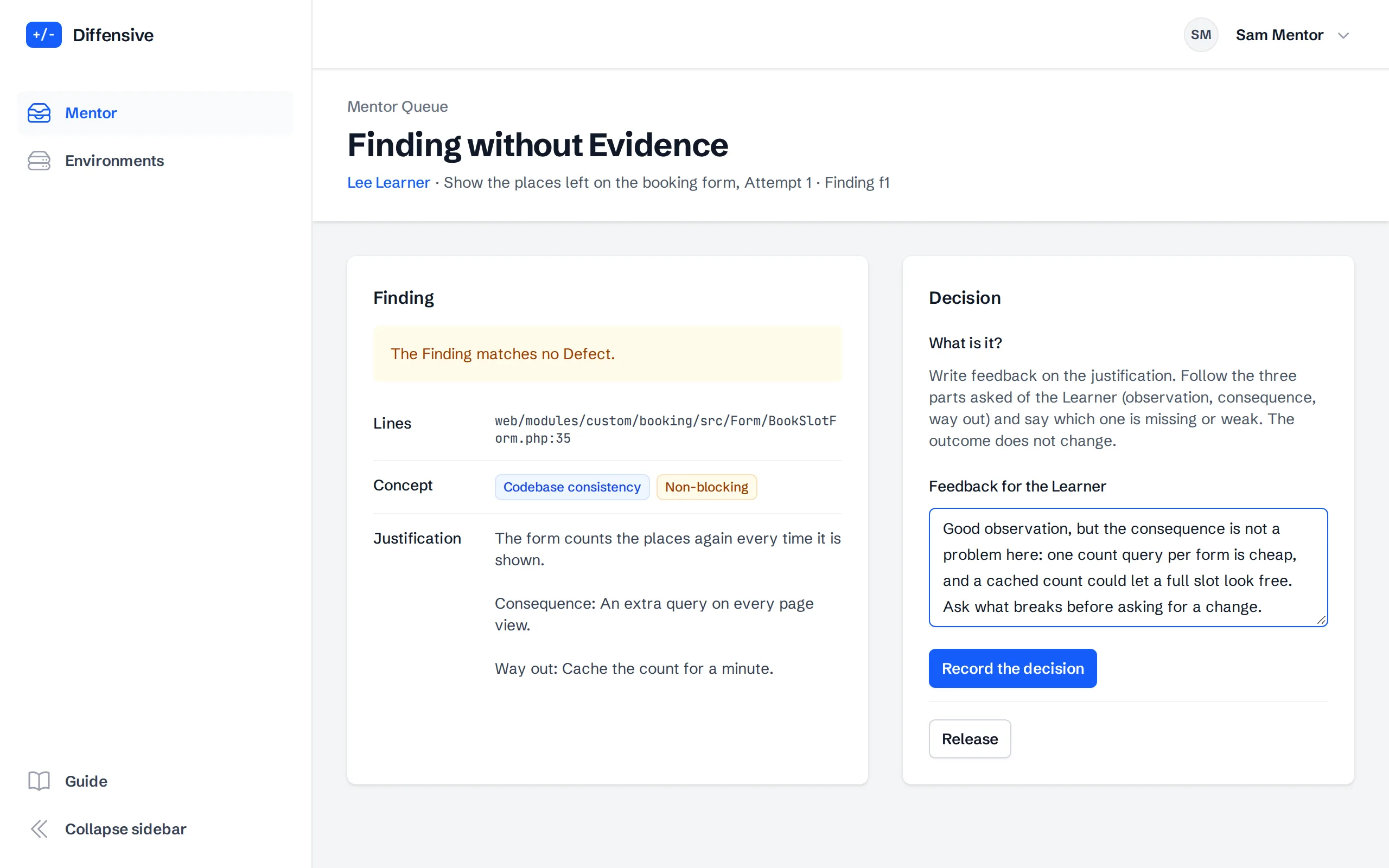
For a Finding without Evidence, write feedback on the justification: say which of the observation, the consequence and the way out is missing or weak. The outcome of the Attempt does not change.
Record the decision. The Learner reads it under the result of the Attempt. Release gives the item back to the queue if you cannot decide it.
-
Follow the Learners
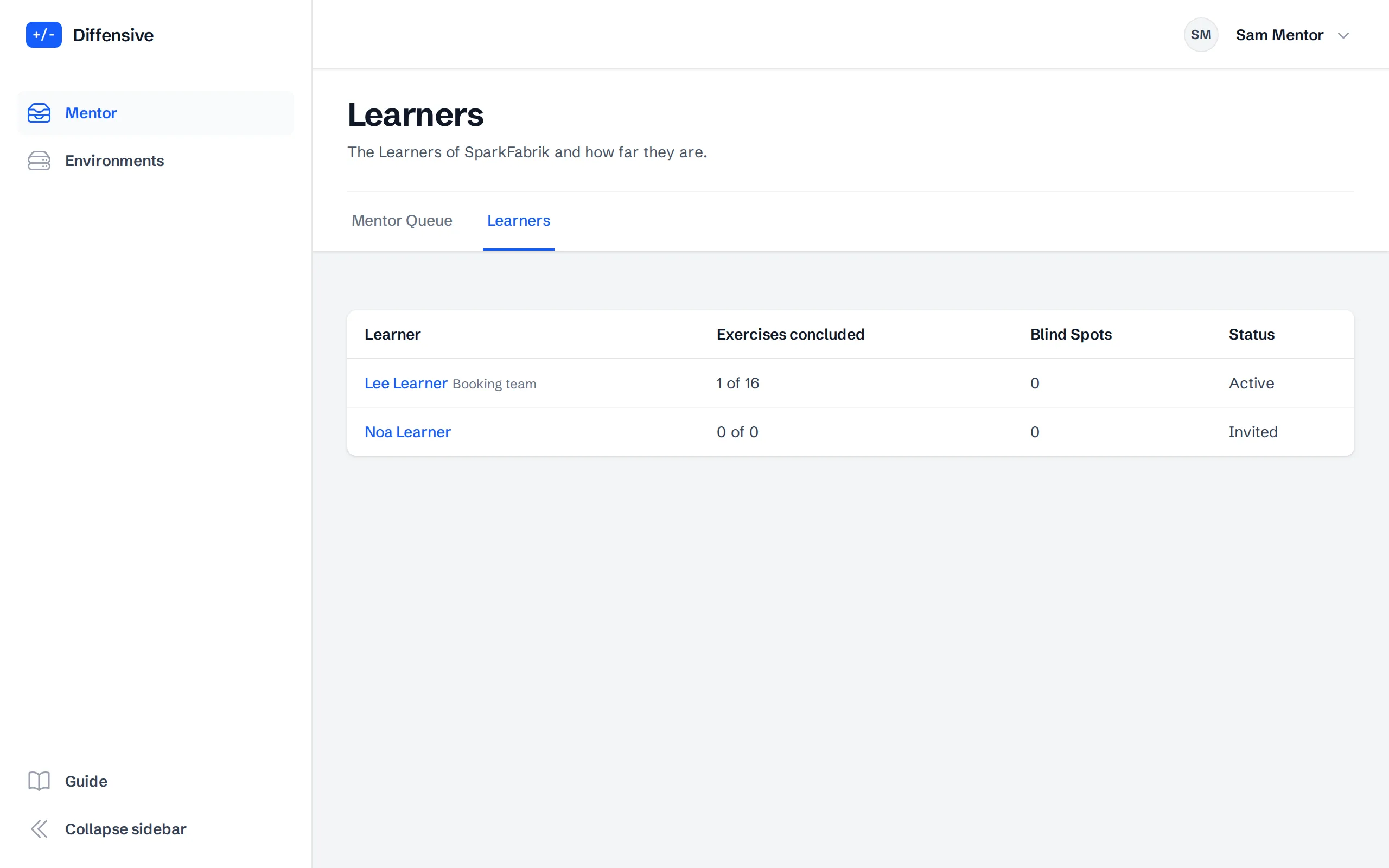
Learners, next to the Mentor Queue, lists the Learners of the Organization: how many Exercises they concluded, their Blind Spots and whether they have accepted their Invitation.
-
Open the path of a Learner
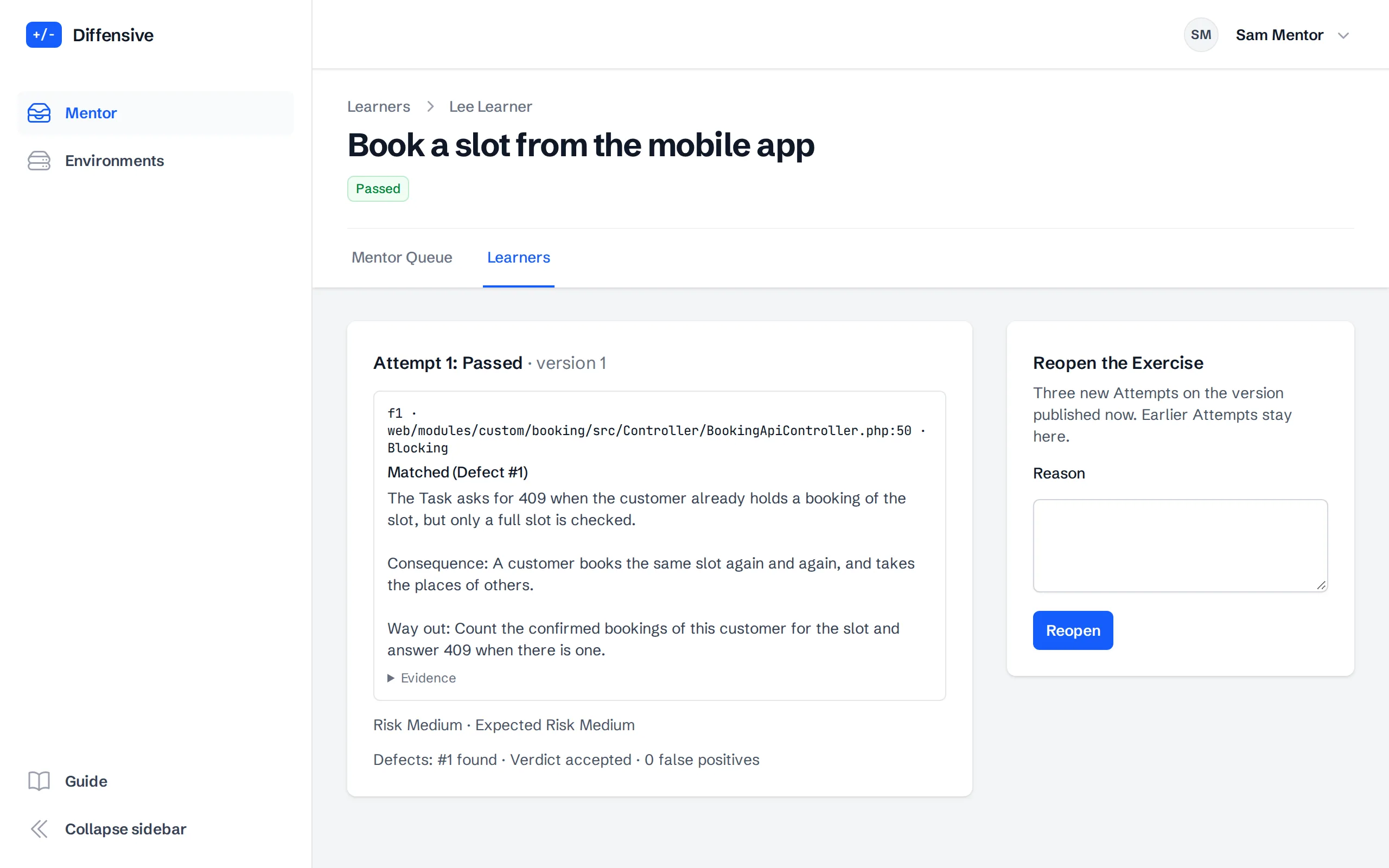
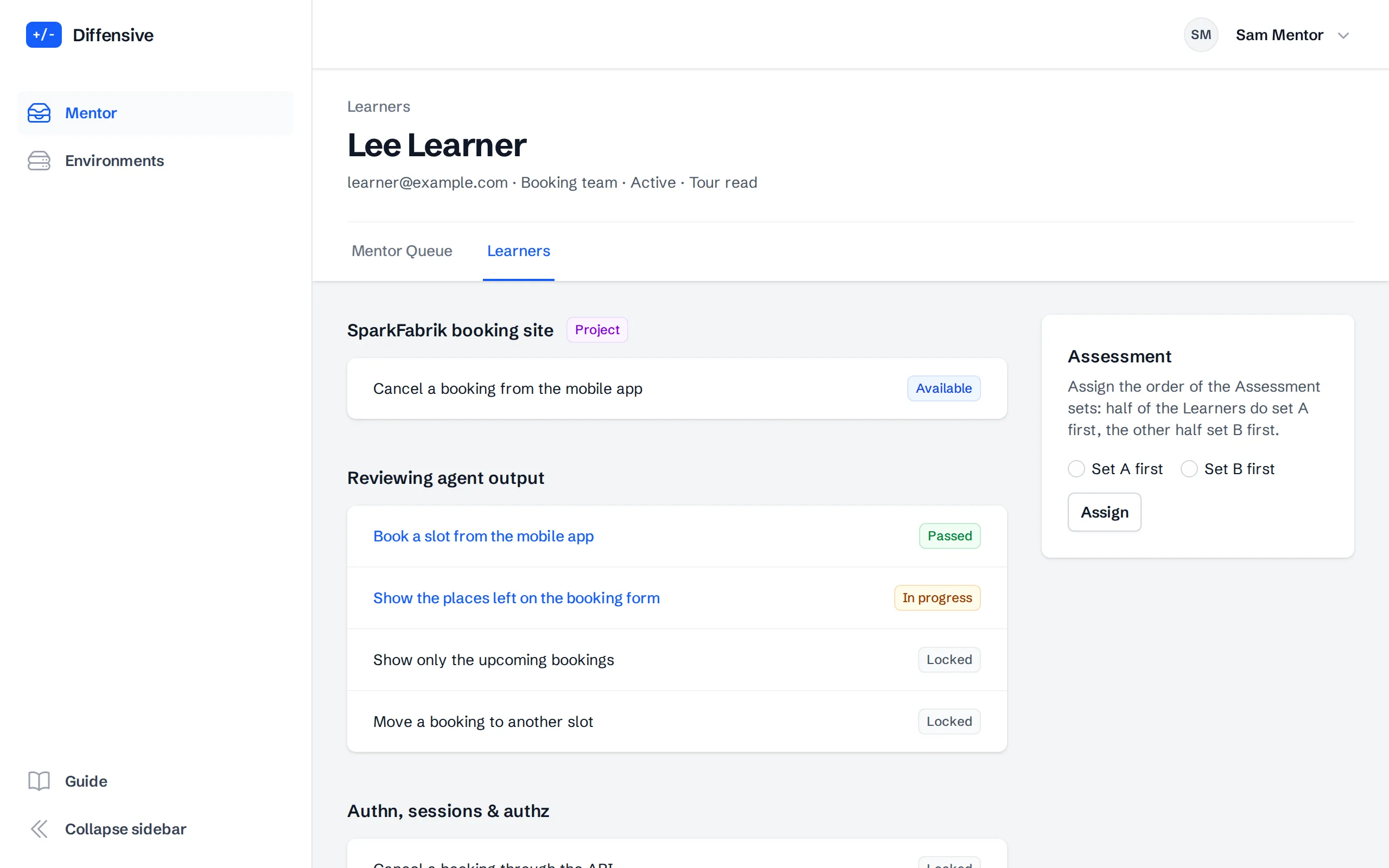
A Learner's page shows their path, Exercise by Exercise, with the same statuses they see, and their statistics by Concept: recall, precision, residual recall, over-trust and under-trust, with how many Reviews had the expected Risk.
The Assessment measures a Learner before and after the path with two sets of reserved Exercises. Choose which set the Learner does first: half of the Learners start with set A, the other half with set B. The first set opens at once; at the end of the path, open the other one from the same page. The scores are shown per set, and a set with an Exercise started before the Learner joined shows Before joining.
-
Read the Attempts and reopen an Exercise
Open an Exercise of the Learner to read each Attempt: the Findings, which Defect each one matched, the Evidence, and the outcome. The page also shows the Risk the Learner gave next to the expected one and, for an Exercise with an AI Review, how they triaged each of its Findings, with the reason of each rejection and whether the decision was right.
When a Learner should try again, for example after a new version is published, Reopen the Exercise with a reason. The Learner gets three new Attempts on the version published now, and the earlier Attempts stay visible.
Under each Finding whose way out the judge compared with the Solutions, the page shows the judge's Solution Distance and explanation. Choose Matches, Close, Far or Worse, add a note, and Save Solution Distance: the Learner reads your level and note in the Debrief, with your name, under the judge's feedback. The last level saved is the one the Learner reads. While the judge is working, the Attempt says that feedback on the way out is being prepared, and when the judge gave none, that none is available.