Author
Write Tracks, Concepts and Exercises, seed and prove their Defects, then validate and publish them.
You are a senior with the Author role, granted by the Platform Admin. You write the Catalog that every Organization shares: the theory of each Concept and the Exercises that practice it. An Exercise reaches the Learners only once it passes validation and you publish it.
An Exercise is built from four pieces: a Task, the request given to the agent; a Proposal, the diff the agent produced; the Defects of the Proposal, which form its Answer Key; and the settings of the Exercise itself.
On a development instance, sign in as author@example.com from the development sign-in page to follow along.
-
Open the editor
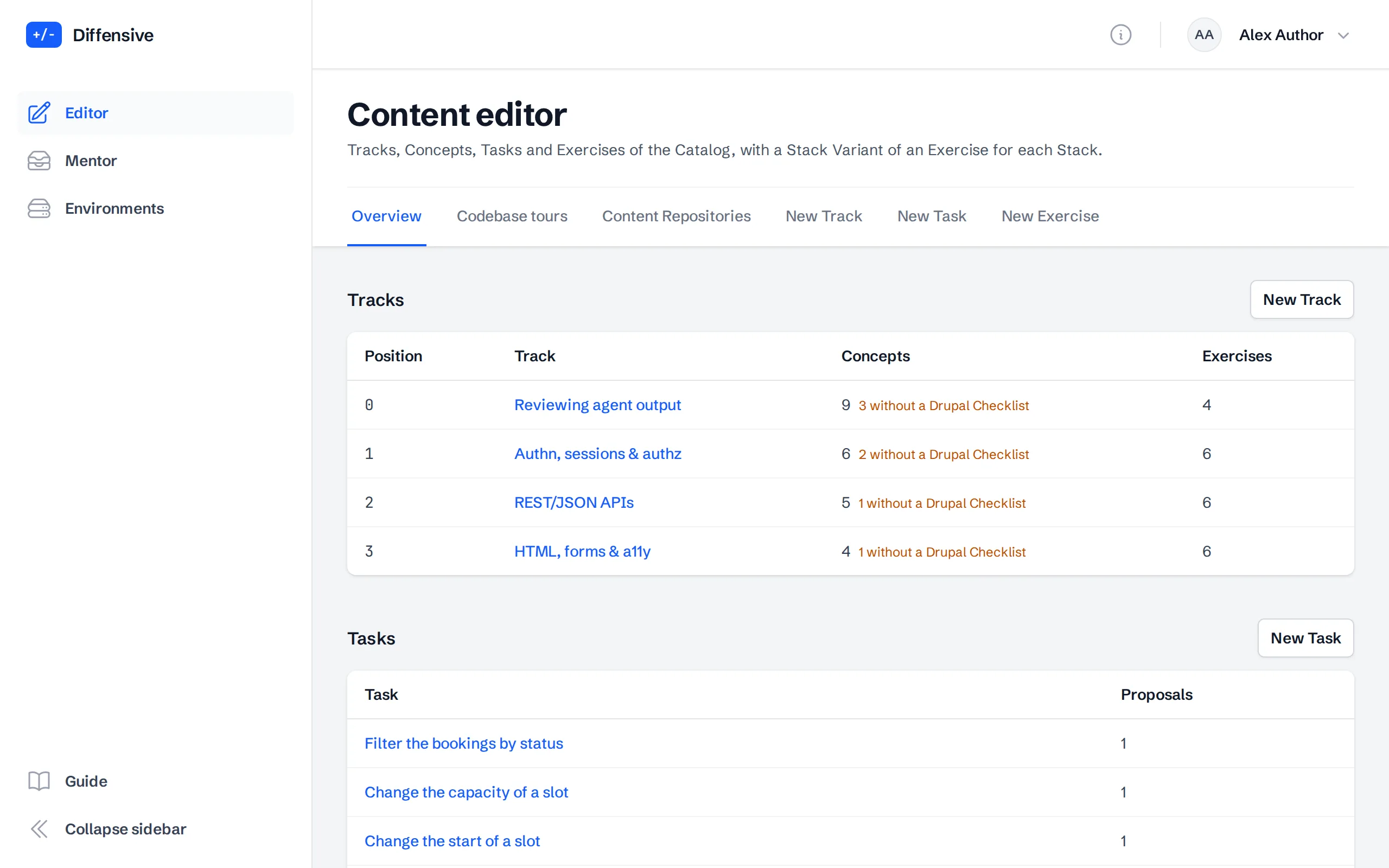
Choose Editor in the menu. The overview lists the Tracks, with the Concepts that still miss their Drupal Checklist, then the Tasks and the Exercises with their status. The tabs lead to the Codebase tours, one per Stack, that Learners read first, and to the forms for a new Track, Task or Exercise. The (i) button at the top right opens the help of the page, with how a Task differs from an Exercise and what the other terms mean.
-
Write the Codebase tours
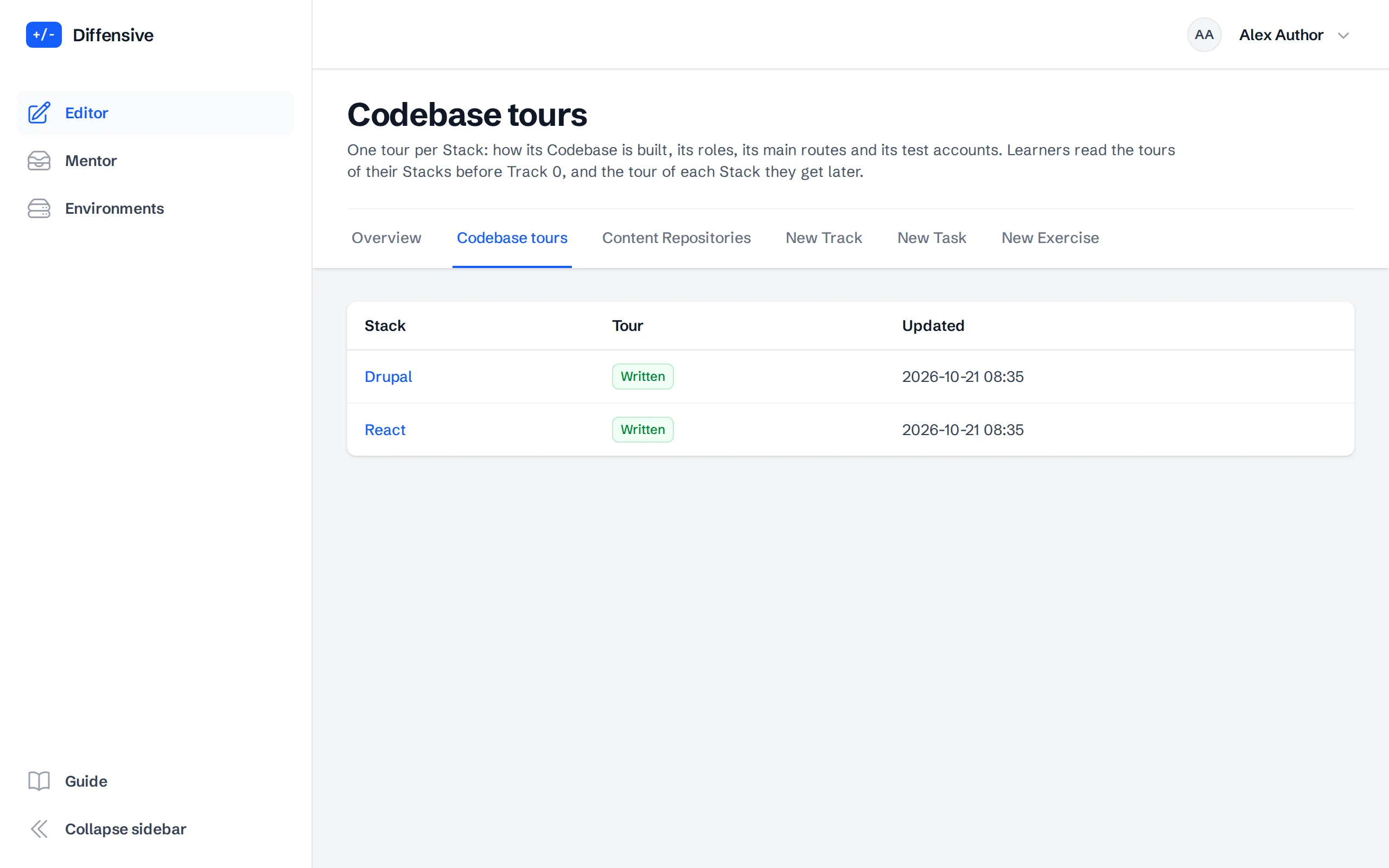
Codebase tours lists the Stacks that the Platform Admin added, each with its tour. Learners read the tours of their Stacks before Track 0: how the Codebase is built, its roles, its main routes and its test accounts. Open a Stack to write its tour in Markdown. The overview warns about the Stacks without a tour.
-
Write the theory of a Concept
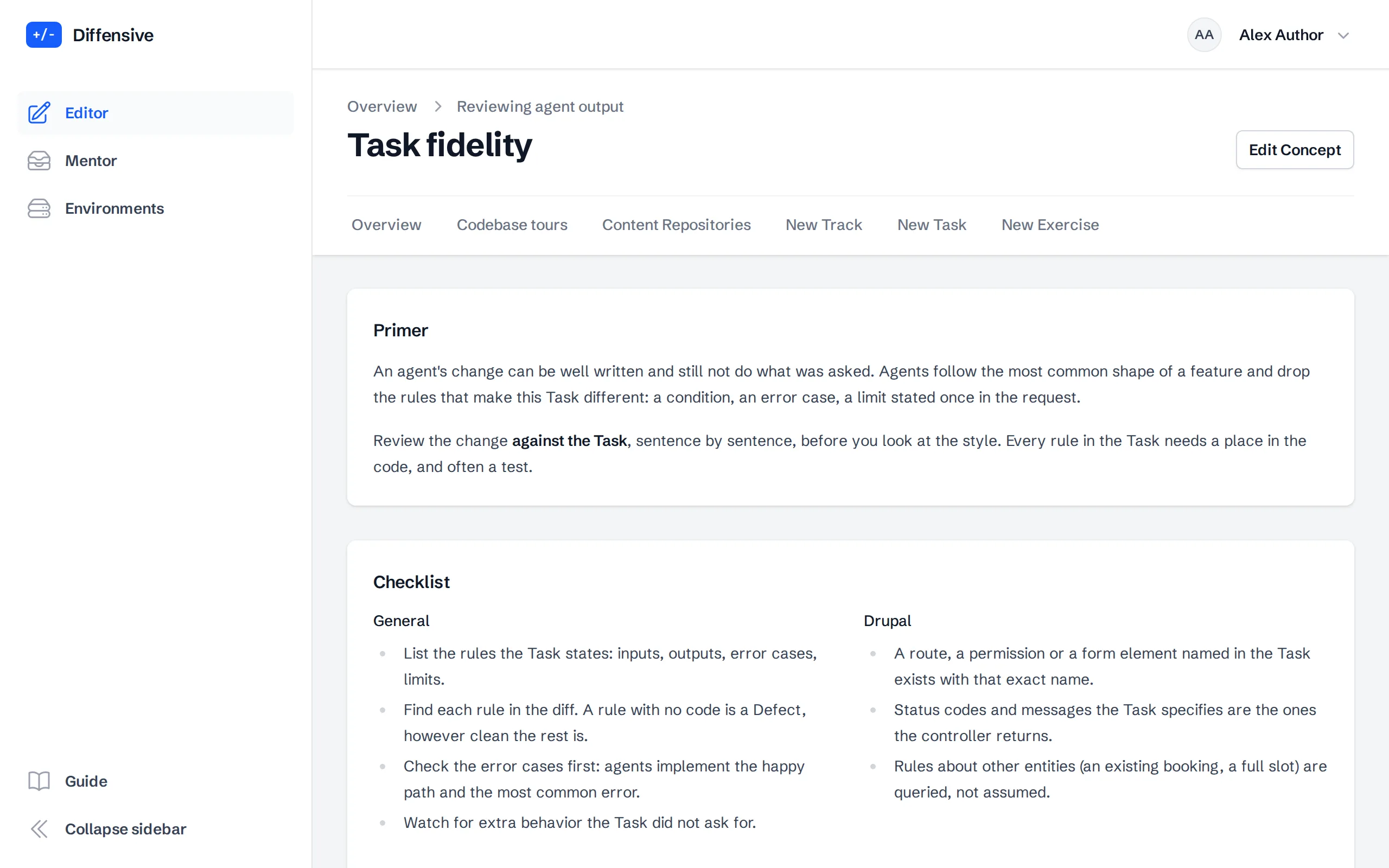
Open a Track to see its Concepts in order, then open a Concept. A Concept has:
- an Explainer: a short explanation of the Concept, which Learners open from the Hints and the Debrief;
- a Checklist: what to verify on a Proposal, in general and for each Stack, such as Drupal;
- its Failure Patterns: the ways agents usually get this Concept wrong.
Every text field takes Markdown, with a preview. Security and accessibility Concepts can cite their CWE and WCAG references.
-
Write a Task and add its Proposal
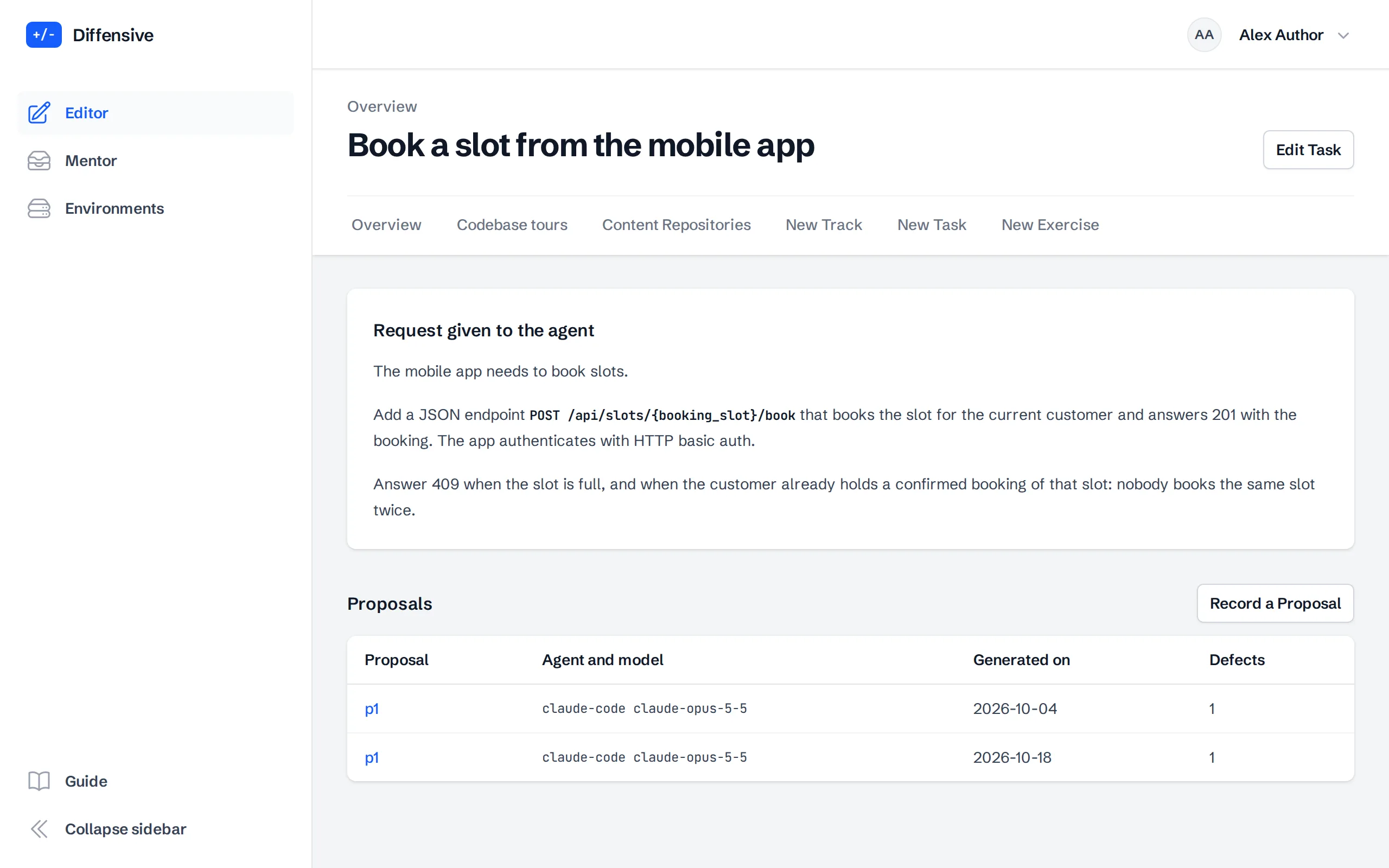
A Task is the request given to the agent, written as a developer would write it to a colleague. Under the Task, Record a Proposal for each output an agent produced: the agent, the model, the date and the diff, pasted or uploaded as a file. A Proposal is a real output of an agent: keep its mistakes, they are the material of the Exercise.
-
Open the Answer Key
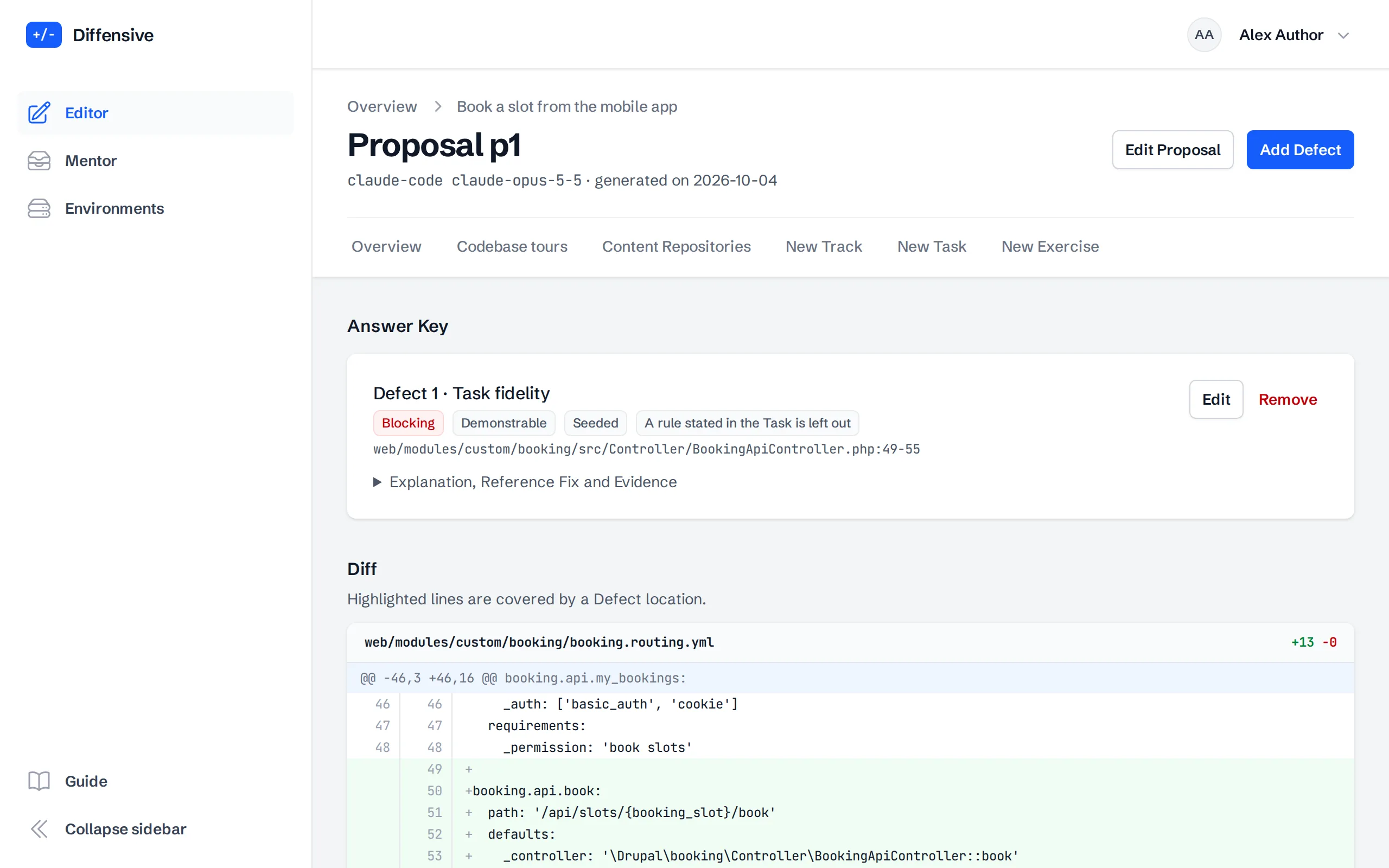
Open the Proposal: it shows the diff and its Answer Key, the list of its known Defects. Lines covered by a Defect are highlighted in the diff.
-
Add the Defects
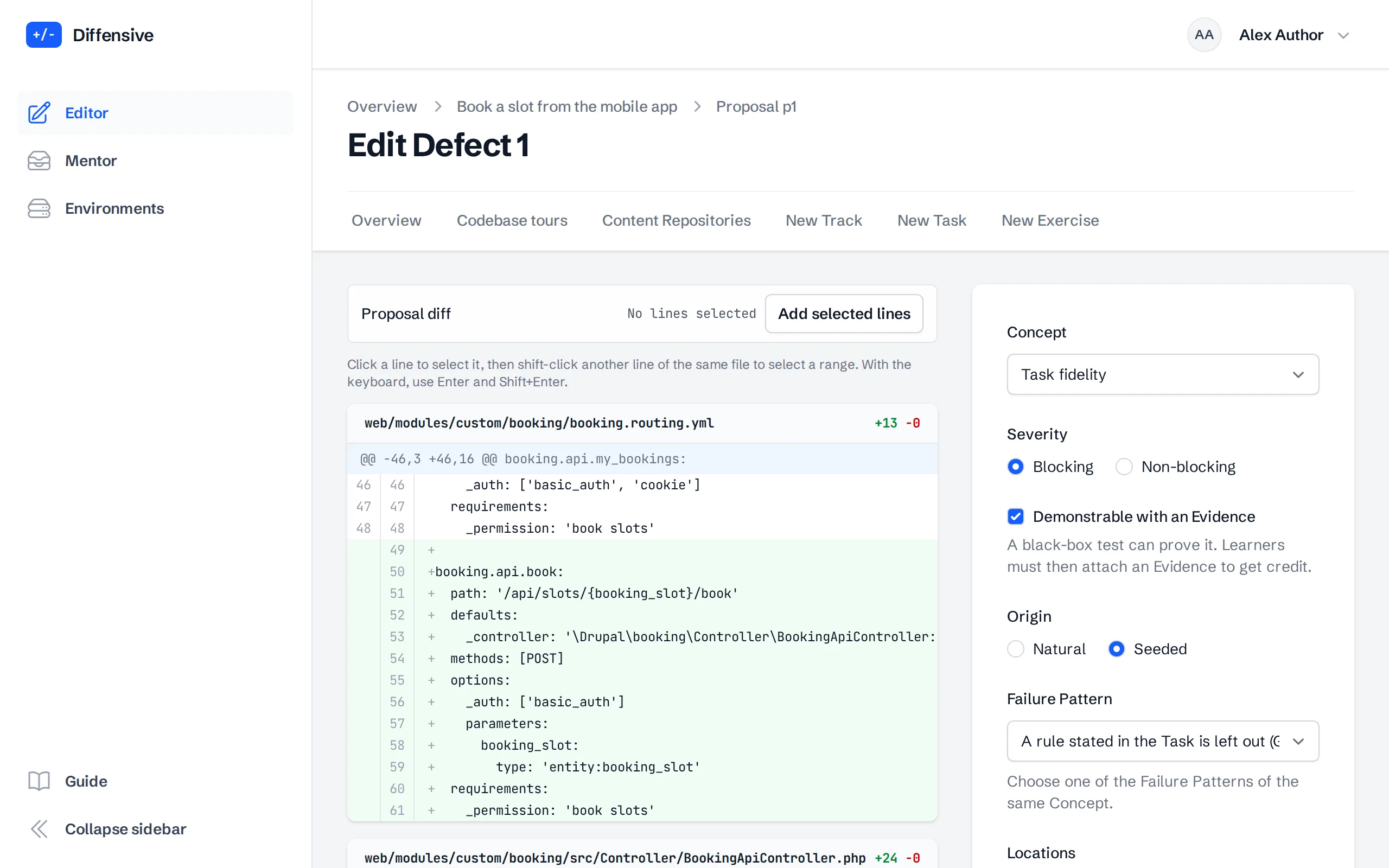
Add Defect for each problem. Select its lines in the diff, choose the Concept, the Severity and the Failure Pattern, and say whether it is natural, made by the agent, or seeded, added on purpose.
A Defect that a black-box test can prove is demonstrable. Give it a Reference Fix, the diff that corrects this Defect only, and a Reference Evidence: a Hurl file or a Playwright test that fails on the Proposal and passes on the fix. Writing an Evidence describes both formats. Learners must then attach an Evidence to get credit for it. The explanation you write is what the Debrief shows.
Each Defect card has Add Solution. A Solution is a way to fix the Defect: mark it Accepted when you would take it, or Wrong when it looks plausible but misses the Defect. Give it a title, an explanation and the Concepts a Learner should reread. A Defect with Wrong Solutions needs at least one Accepted Solution.
-
Create the Exercise
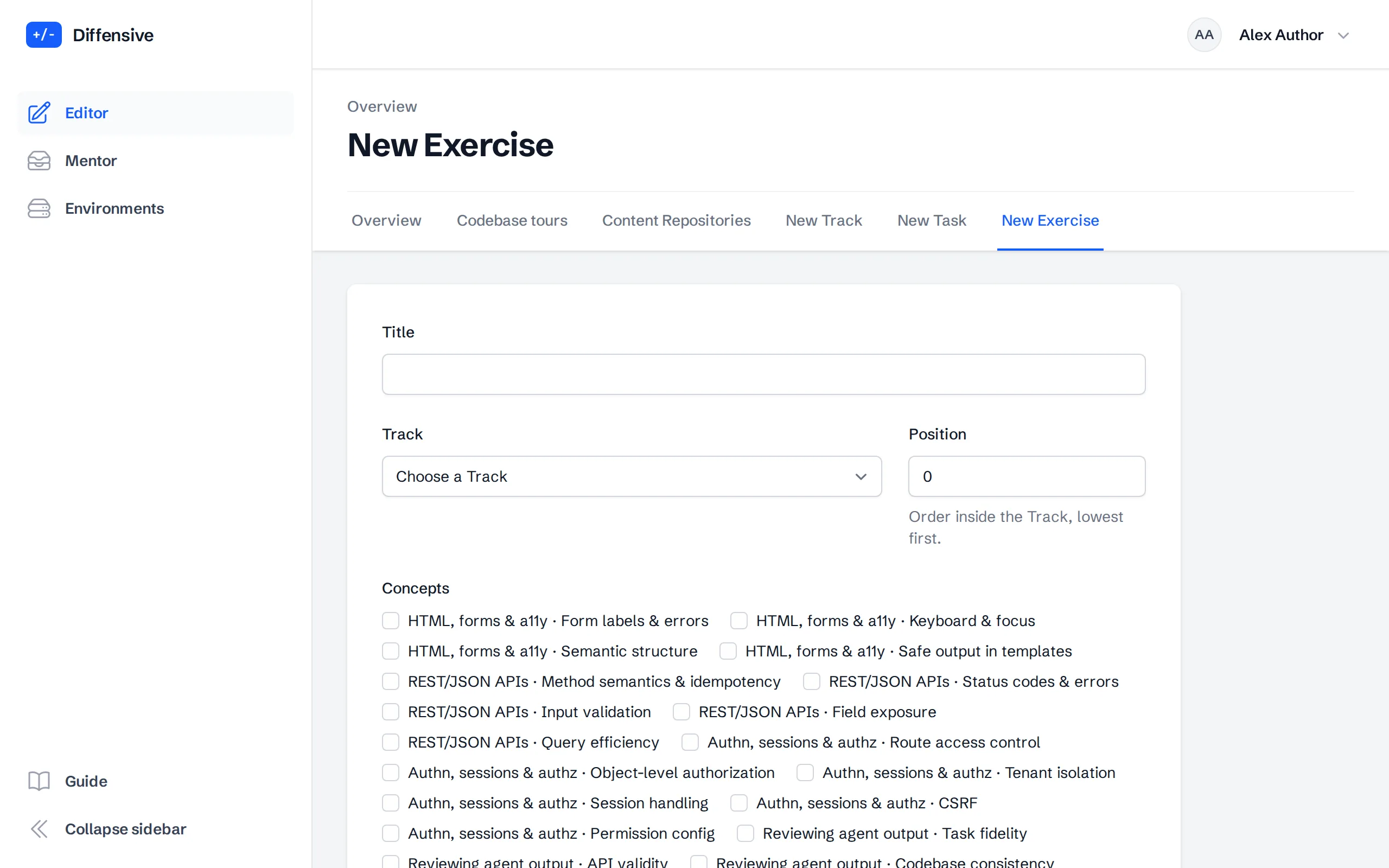
New Exercise sets what the Stacks share: the title, the Track and the position in it, the Concepts it practices, its Level and the Task. Mark it as part of Assessment set A or B to keep it out of the Catalog and reserve it for the Assessment.
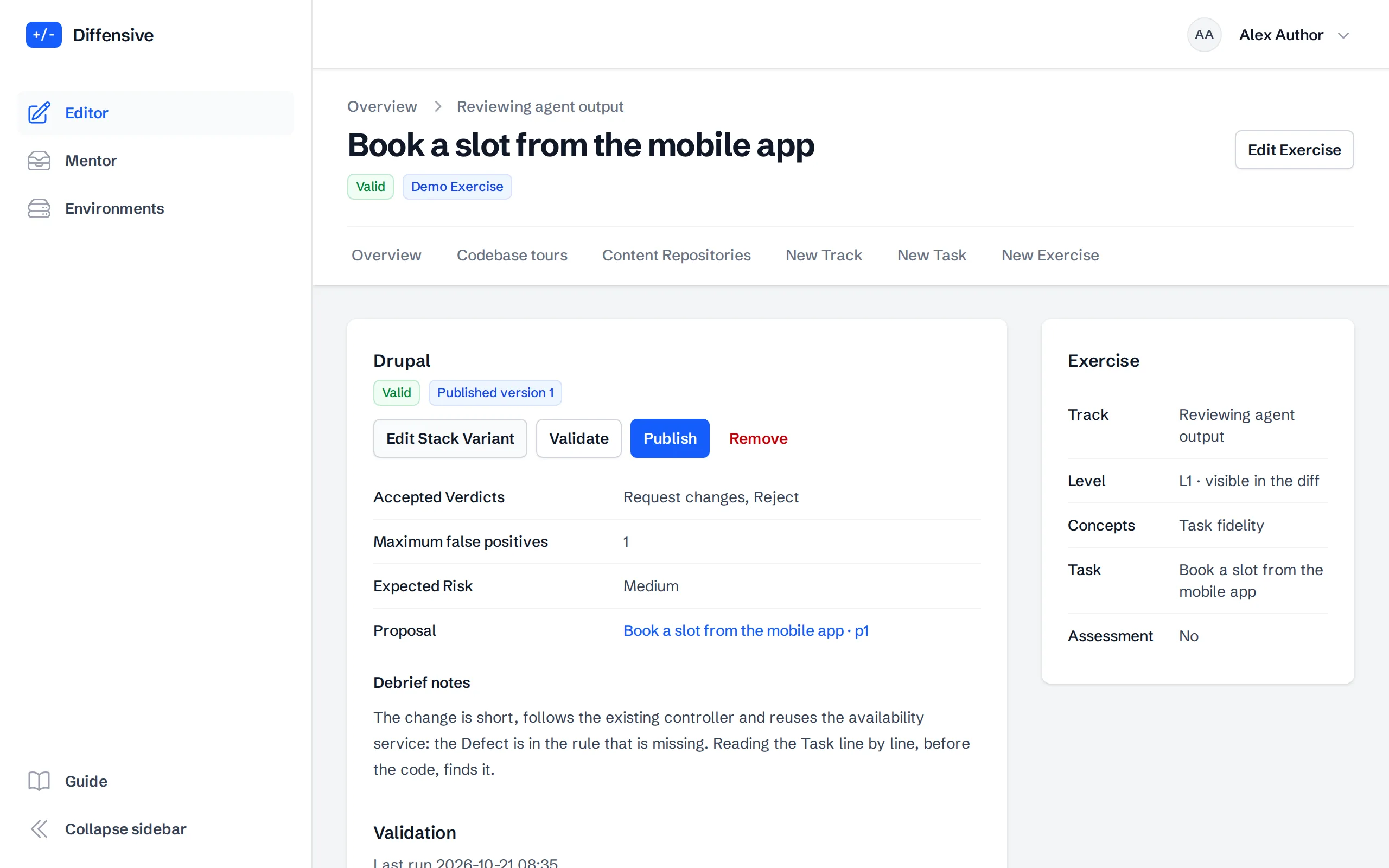
The page of the Exercise has one card for each Stack Variant, the Exercise written on the Codebase of one Stack. Add a Stack Variant asks for the Stack, the Proposal, the Accepted Verdicts, the Maximum false positives a Learner can open and still pass, the Expected Risk with its rationale, and the Debrief notes. The expected Risk is low for documentation, copy and additive changes behind a flag, medium for ordinary product changes and high for authentication and authorization, payments, personal data and configuration shared by several sites. The Debrief shows it next to the Risk the Learner chose. Each Stack Variant is validated and published on its own.
A Learner does the Exercise once, in the Stack Variant of one of their Stacks, and chooses it before the start when they have several.
-
Choose an AI Review
An Exercise can carry an AI Review, so the Learner practices next to an AI reviewer. In the Reviewer Benchmark section, choose Run the benchmark on this draft (it works before and after publication) and wait for the reference AI reviewers. In the AI Review section, choose Use as AI Review on one completed Review of the Proposal.
The editor shows which Defects it finds, which it misses and which of its Findings match no Defect. Write an explanation for each Finding, shown in the Debrief, and tick pre-existing for a real flaw in code the Proposal does not change. If you change the Proposal or its diff, choose the AI Review again: validation refuses one that belongs to another Proposal or reviewed an earlier diff. The AI Review is frozen in the version when you publish.
-
Validate
On the page of the Exercise, choose Validate. Four checks run in order:
- Required fields are filled in.
- References between Concepts, Defects and Proposal hold.
- Images: the Proposal and each Reference Fix build into running applications.
- Reference Evidence: each Evidence fails on the Proposal, passes on its own Reference Fix and fails on the fixes of the other Defects.
The last two take a minute and the page updates by itself. Explore the images then starts an Environment on the Proposal or on a Reference Fix, to see the application as a Learner will.
-
Publish and follow up
Publish freezes a version of the Exercise and makes it visible to the Learners. A Learner keeps working on the version they started, so you can keep editing and publish again.
After publishing, the page of the Exercise shows:
- Published versions, with an Environment for each one;
- the Reviewer Benchmark: which Defects the reference AI reviewers find, with a warning when none escapes all of them, and a button to run it on the draft again;
- Defects confirmed by Mentors: Defects a Learner proved that the Answer Key did not list. Add each one to the Proposal, then link it, and the Learner gets the credit.
A published Exercise of the first Track can also be chosen with Use as Demo Exercise: the homepage then offers it to visitors without an account.
-
Publish from a Content Repository
Catalog Exercises can also live in a git Content Repository that the Platform Admin registers: one folder per Exercise in
exercises/, at the root of the repository or under its folder, with one subfolder per Stack, in the format ofcontent/README.md. You review each Exercise in a merge request, and the merge publishes it.In Content Repositories, open the repository and choose Sync. The sync writes the folders that changed since the last one and sends them to validation with publication requested; Sync all writes every folder again. The page lists each folder with what the sync did and the state of its Exercise now. A broken file stops the whole sync before anything is written, and a folder that names a Track or a Concept that does not exist is refused alone.
The Exercises of a repository are read-only in the editor: change them in the repository. You can still run the benchmark, explore the images, handle the Defects confirmed by Mentors and choose the Demo Exercise. To give one an AI Review, run the benchmark on its draft, choose Compose ai-review.yaml on a completed Review, explain each Finding and download the file. Commit it in the subfolder of its Stack, next to
variant.yaml: the next sync publishes the Stack Variant with it.