Learner
Review the Proposals of an AI agent, prove each Defect with an Evidence and learn from the Debrief.
You are a junior developer. On Diffensive you review changes that an AI agent made to a real web application, as you would review a pull request before merging it. You find what is wrong, prove it with a short test, and learn from what you missed.
Every Exercise follows the same loop: read the Task, review the Proposal, open a Finding on each problem, give your Verdict and your Risk, then read the Debrief. When an AI reviewer already reviewed the Proposal, you judge its Findings first.
On a development instance, sign in as learner@example.com from the development sign-in page to follow along.
-
Open your path
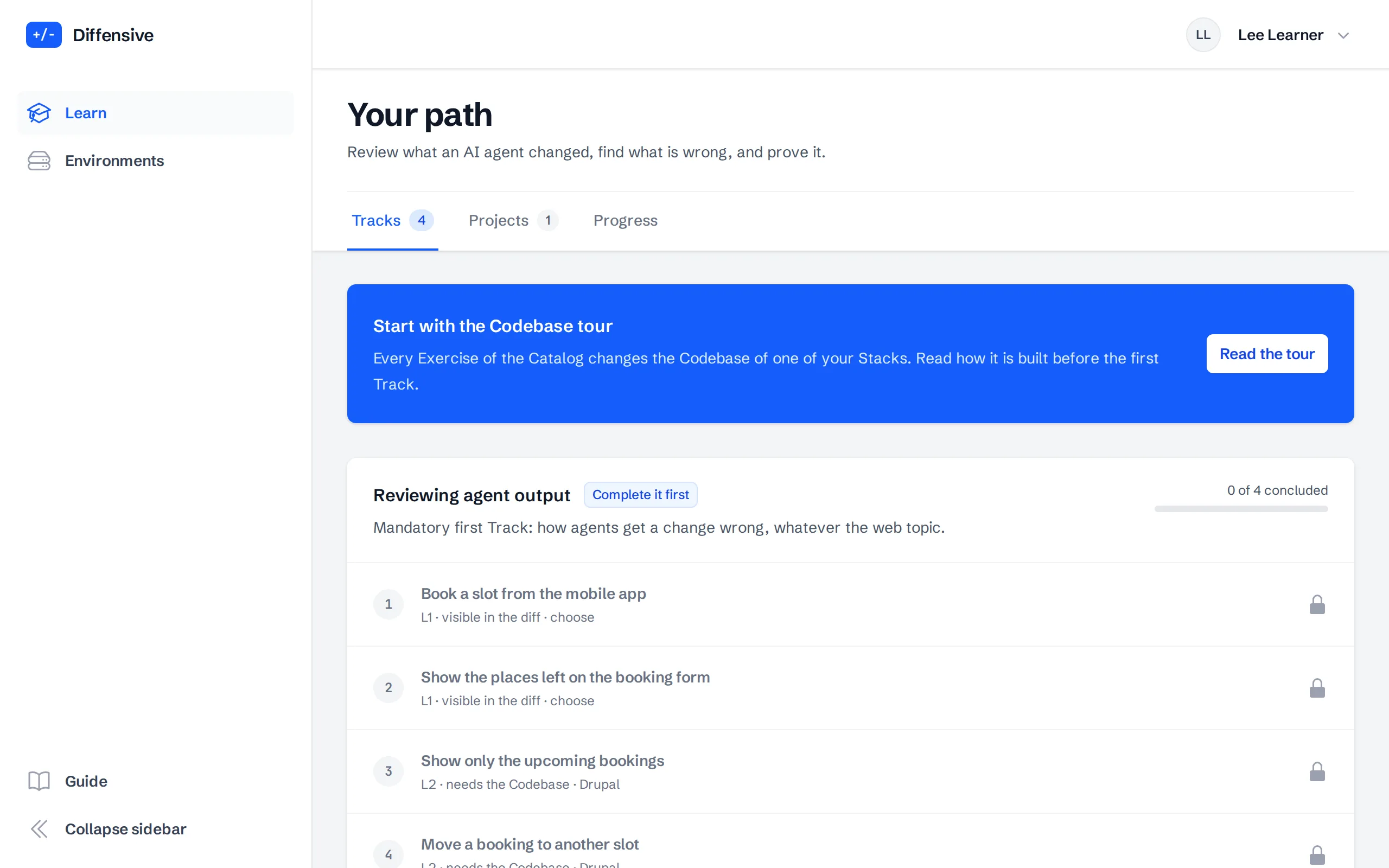
Choose Learn in the menu. Your path opens on the Tracks tab: the Tracks your Organization follows, each with its Exercises in order, in the Stacks your Teams work on. If you are in no Team with a Stack yet, the path says so: ask your Organization Manager. The Projects tab lists the Exercises of the Projects of your Teams, and a card on top shows the Exercise to continue or to start next. When an Exercise exists in more than one of your Stacks, you choose the Stack before you start it, and the Exercise stays in that Stack. The first Track, Reviewing agent output, is mandatory: the other Tracks open once you complete it.
Each Exercise shows its Level: L1 means the Defects are visible in the diff, L2 needs the rest of the Codebase, L3 needs the running application. An Exercise is Locked until you pass the one before it.
-
Read the Codebase tour
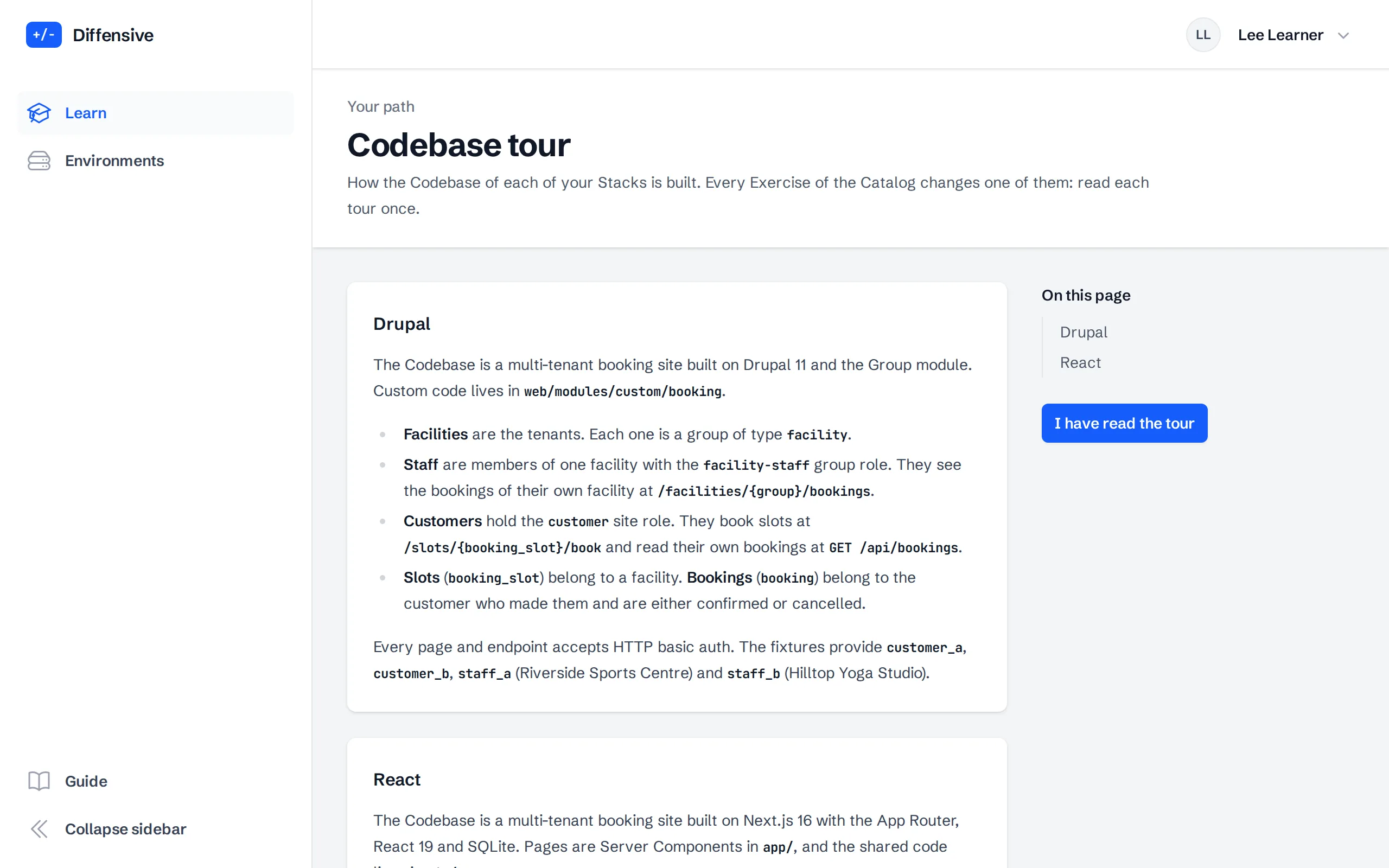
Every Exercise of the Catalog changes the Codebase of one of your Stacks. The first time, the path asks you to read the Codebase tour of each of your Stacks: how the application is built, its roles, its main routes and the test accounts.
Choose I have read the tour once you are done. The first Track opens. When one of your Teams starts working on a new Stack, the path shows its tour as new: read it before its Exercises.
-
Open an Exercise
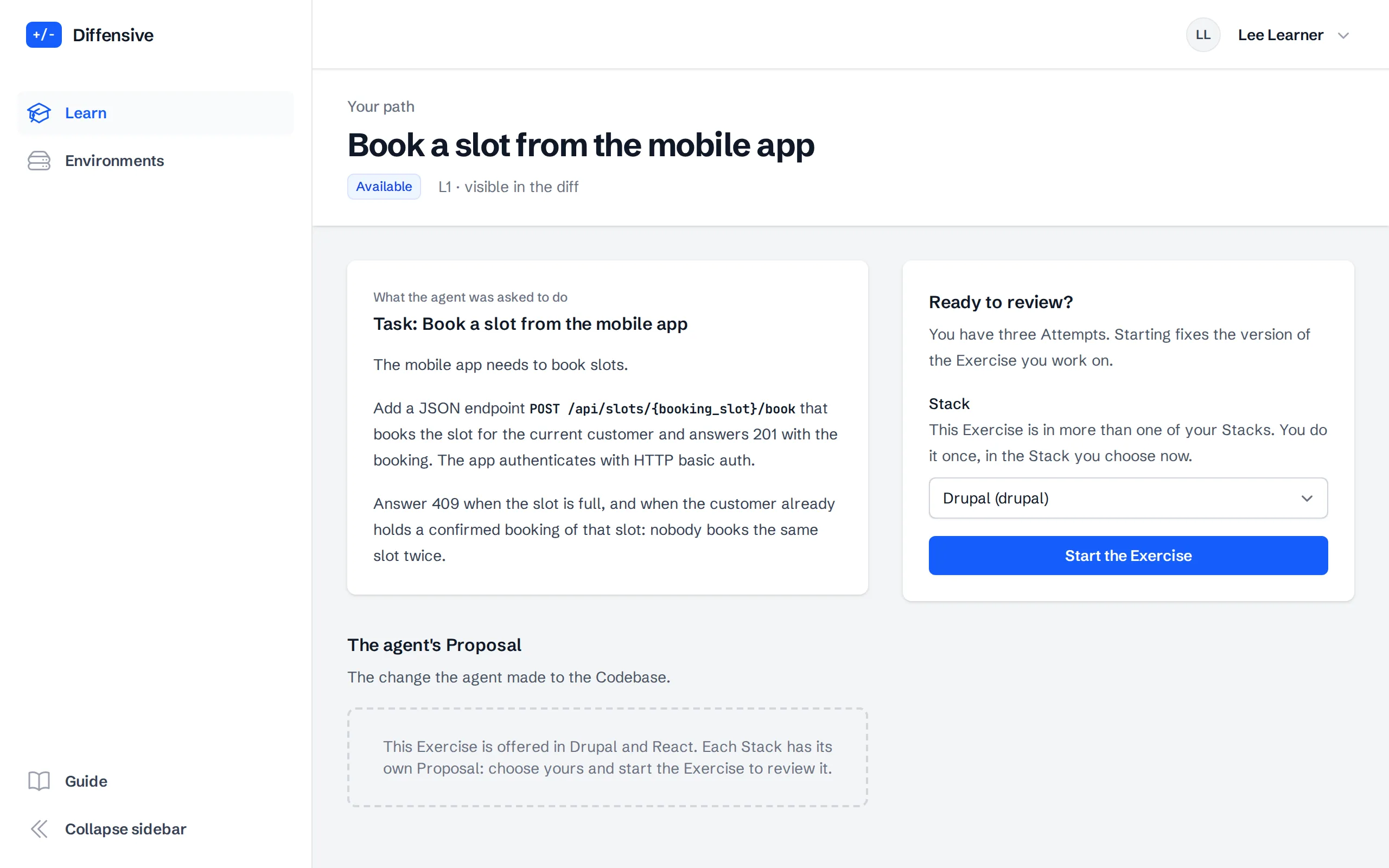
Choose the first available Exercise. The page shows the Task, what the agent was asked to do, and the agent's Proposal, the change it made, as a diff.
Read the Task first, sentence by sentence: an agent often writes clean code that leaves out a rule of the Task. You have three Attempts. Start the Exercise when you are ready: the Exercise you work on no longer changes, even if an Author publishes a new version.
-
Review the Proposal
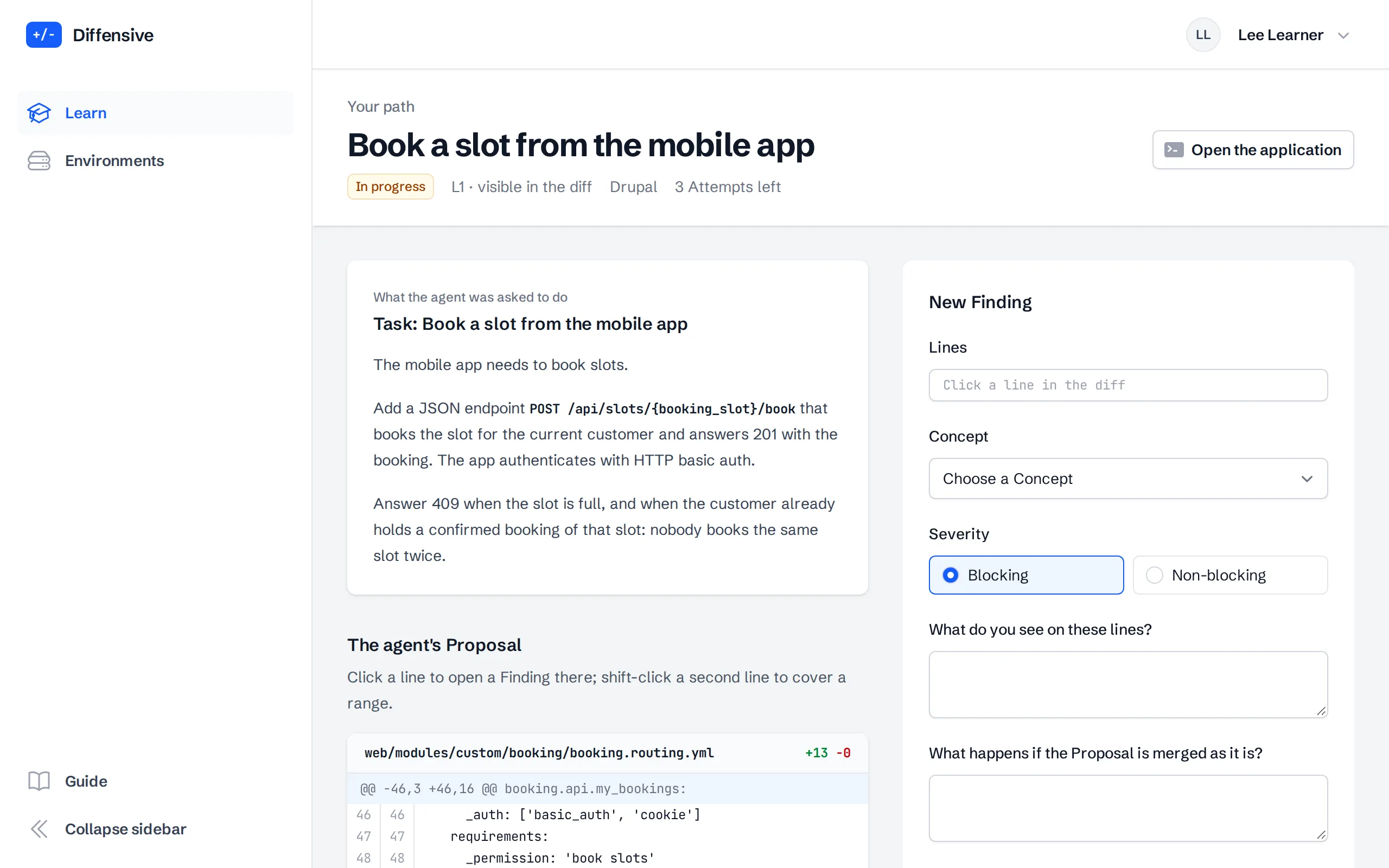
Read the diff. When a line is wrong, click it to open a Finding there. Shift-click a second line to cover a range. The New Finding form, on the right, follows the lines you select.
-
Triage the AI Review
Some Exercises come with an AI Review: the Findings of an AI reviewer, shown on the lines of the diff and in the AI Review card. You triage each one:
- Accept opens a Finding prefilled from it. It becomes yours: change its Concept, Severity, lines or justification, and attach an Evidence when the Defect is provable.
- Reject needs a one-line reason. Choose Undo to bring the Finding back to To triage.
A Finding of the AI Review can be right, wrong, or about a real flaw in code the Proposal does not change (a pre-existing Finding). Accepting a wrong Finding counts as a false positive, and rejecting a real one leaves its Defect missed. You must triage every Finding before you submit. Then add the Findings the AI missed.
-
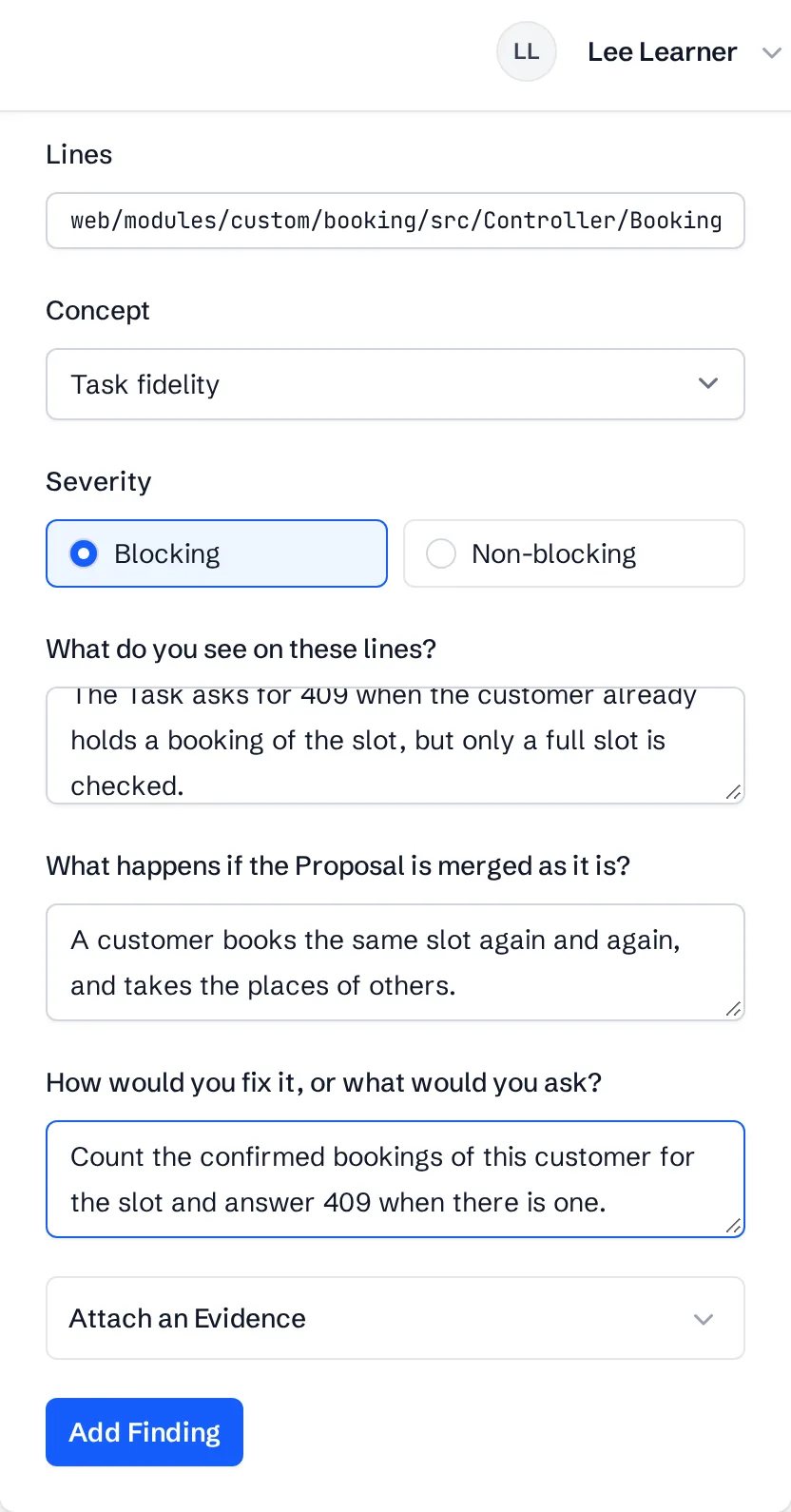
Write a Finding
A Finding says what is wrong in three parts:
- Observation: what the code does.
- Consequence: what goes wrong for a person or for the system.
- Way out: how to fix it.
Choose the Concept that names the problem and its Severity: blocking when the change must not be merged as it is, non-blocking otherwise.
-
Attach an Evidence
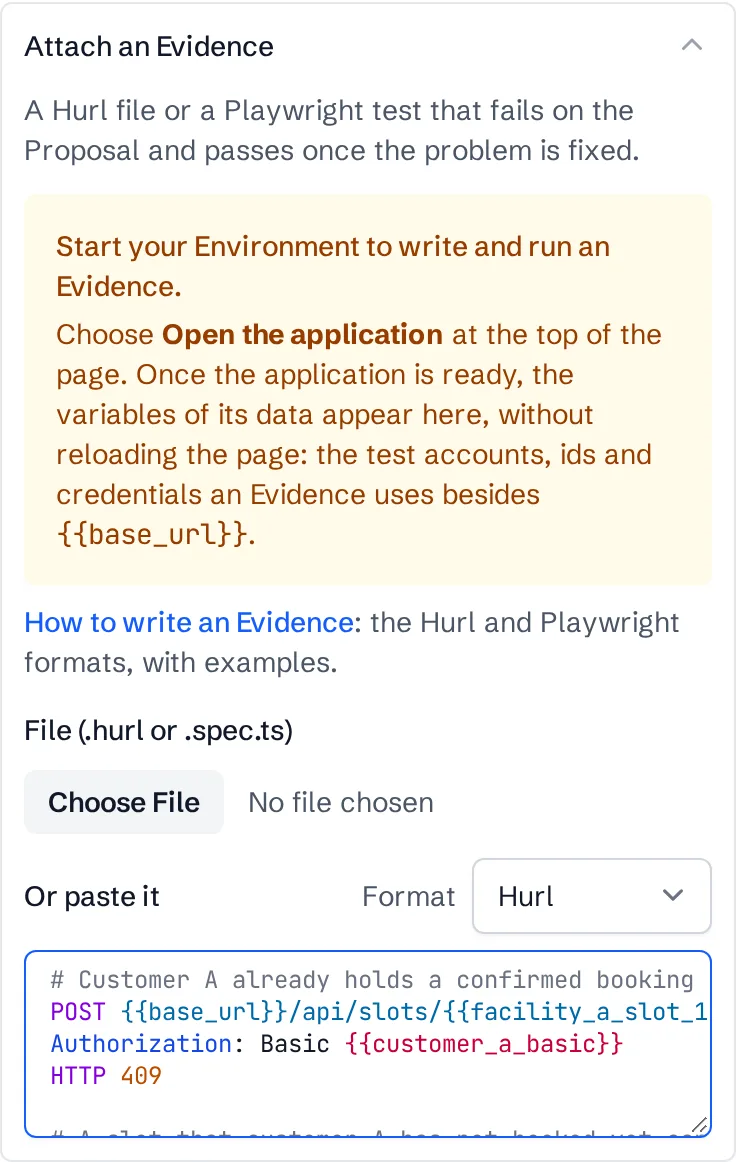
When the problem can be shown, attach an Evidence: a short test that fails on the Proposal and passes once the problem is fixed. It is a Hurl file for HTTP requests, or a Playwright test for pages in the browser. Start your Environment first with Open the application: both get the address of the application and its data as variables, and the form lists them once the application is ready. Writing an Evidence explains both formats, with examples.
In the Exercises that run the application, a blocking Defect counts as found only with an Evidence. Then choose Add Finding.
-
Check your Review
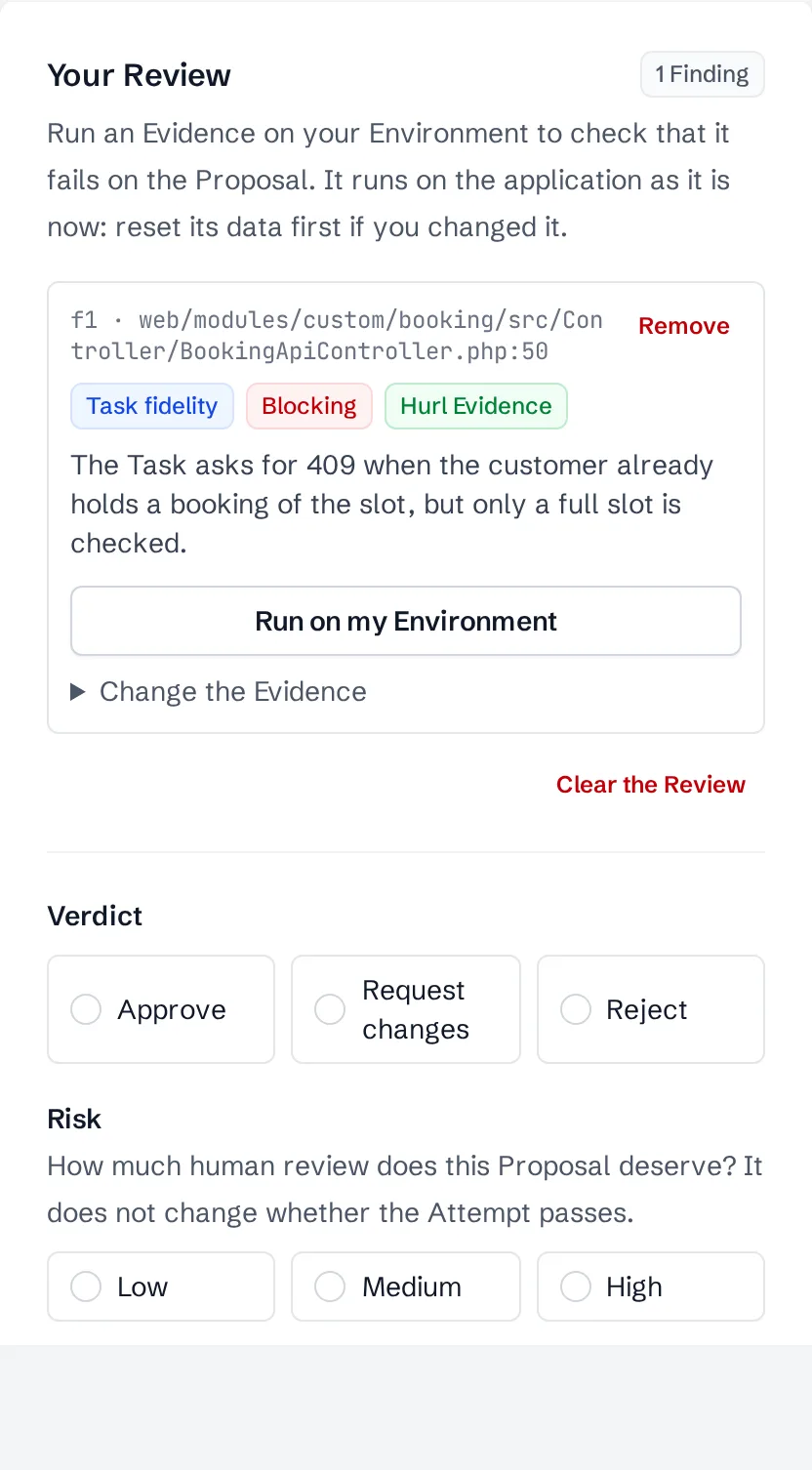
Your Review lists your Findings with their Concept, Severity and Evidence, and marks those accepted from the AI Review. Remove a Finding you no longer believe, or change its Evidence. Removing a Finding accepted from the AI Review puts that Finding back to To triage.
-
Try the application
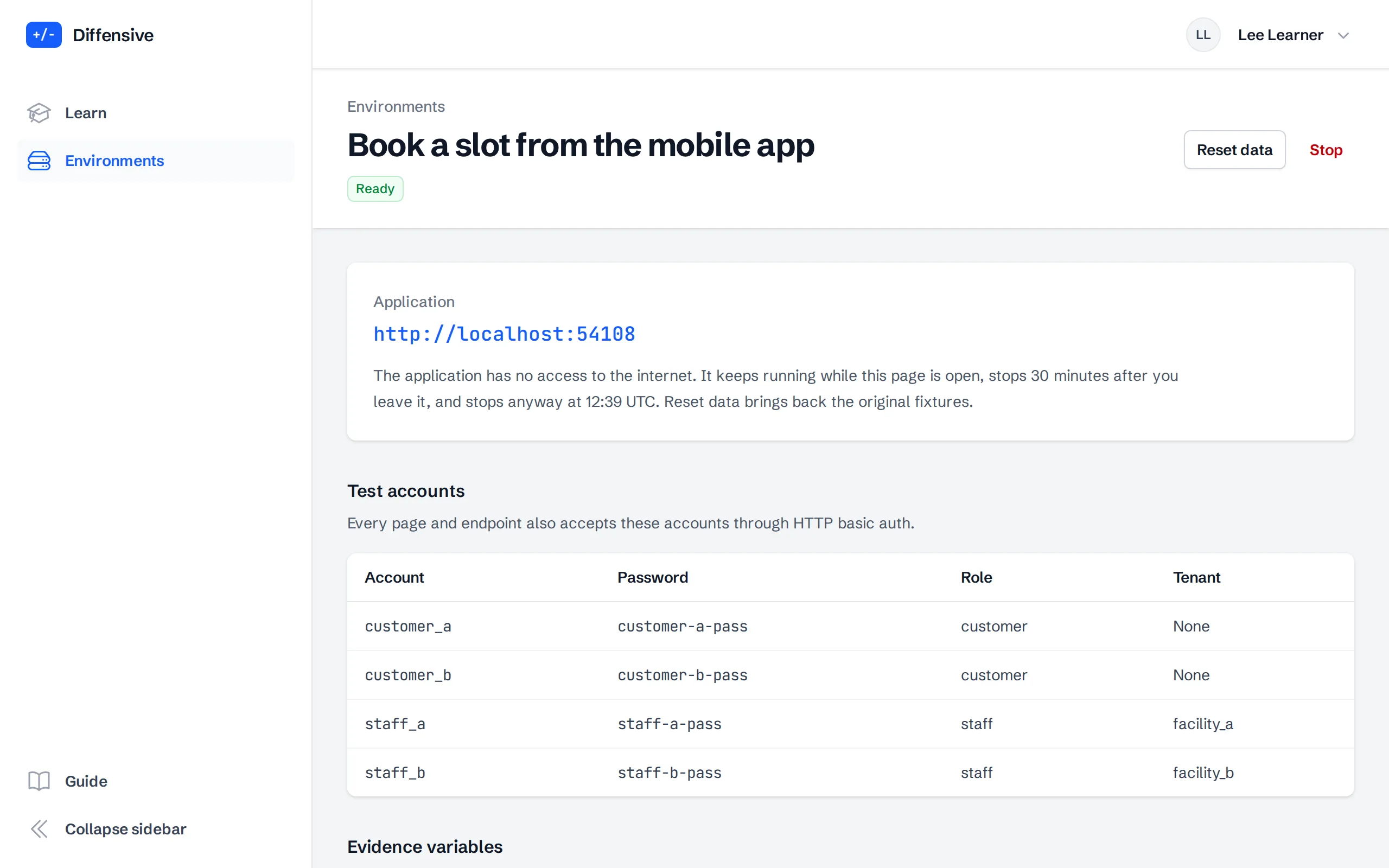
Open the application starts an Environment: a running copy of the Codebase with the Proposal applied, only for you. Its page gives the address of the application, the test accounts and the variables an Evidence can use. Sign in with them and try the change as a user would: some Defects only show in the running application.
The application has no access to the internet. Reset data brings back the original data. The Environment keeps running while its page is open and stops 30 minutes after you leave it. Environments, in the menu, lists yours.
-
Use the variables
Once the Environment is ready, the Evidence form of a Finding lists its variables: the address of the application, the ids of its data and the credentials of the test accounts, with their values. Write them in the Evidence instead of the values,
{{customer_a_basic}}in Hurl orfixtures.customer_a_basicin Playwright, so it works on every copy of the application. Writing an Evidence explains both formats.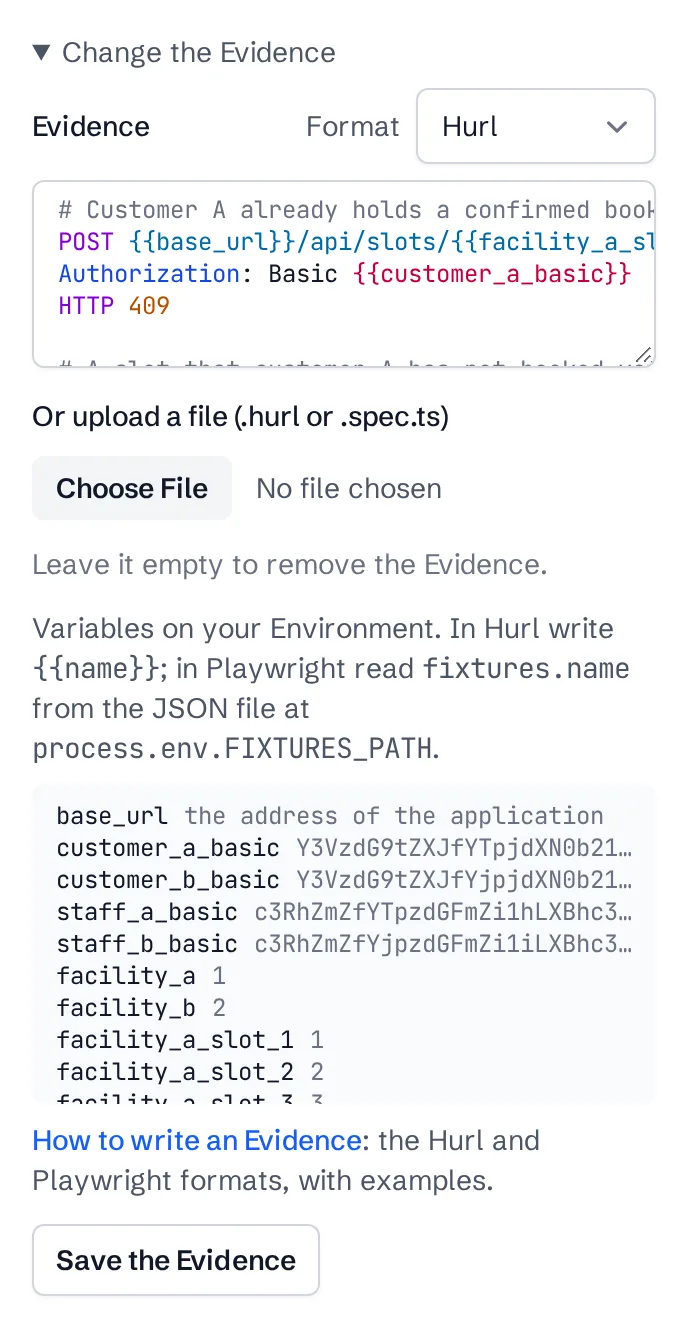
-
Run your Evidence
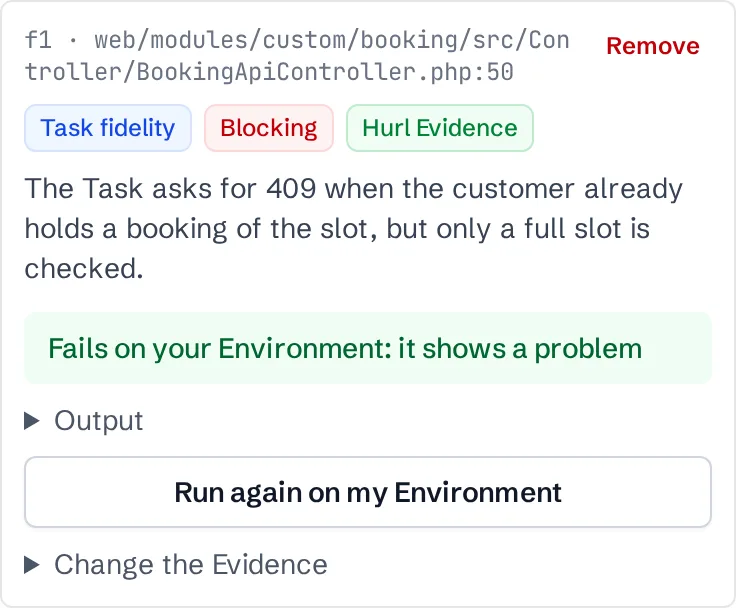
Choose Run on my Environment on a Finding. The Evidence runs against the application as it is now, so reset its data first if you changed it. If the Environment is not ready yet, a message asks you to open the application first. A good Evidence fails on the Proposal: that failure is the proof of the Defect.
-
Give your Verdict and submit
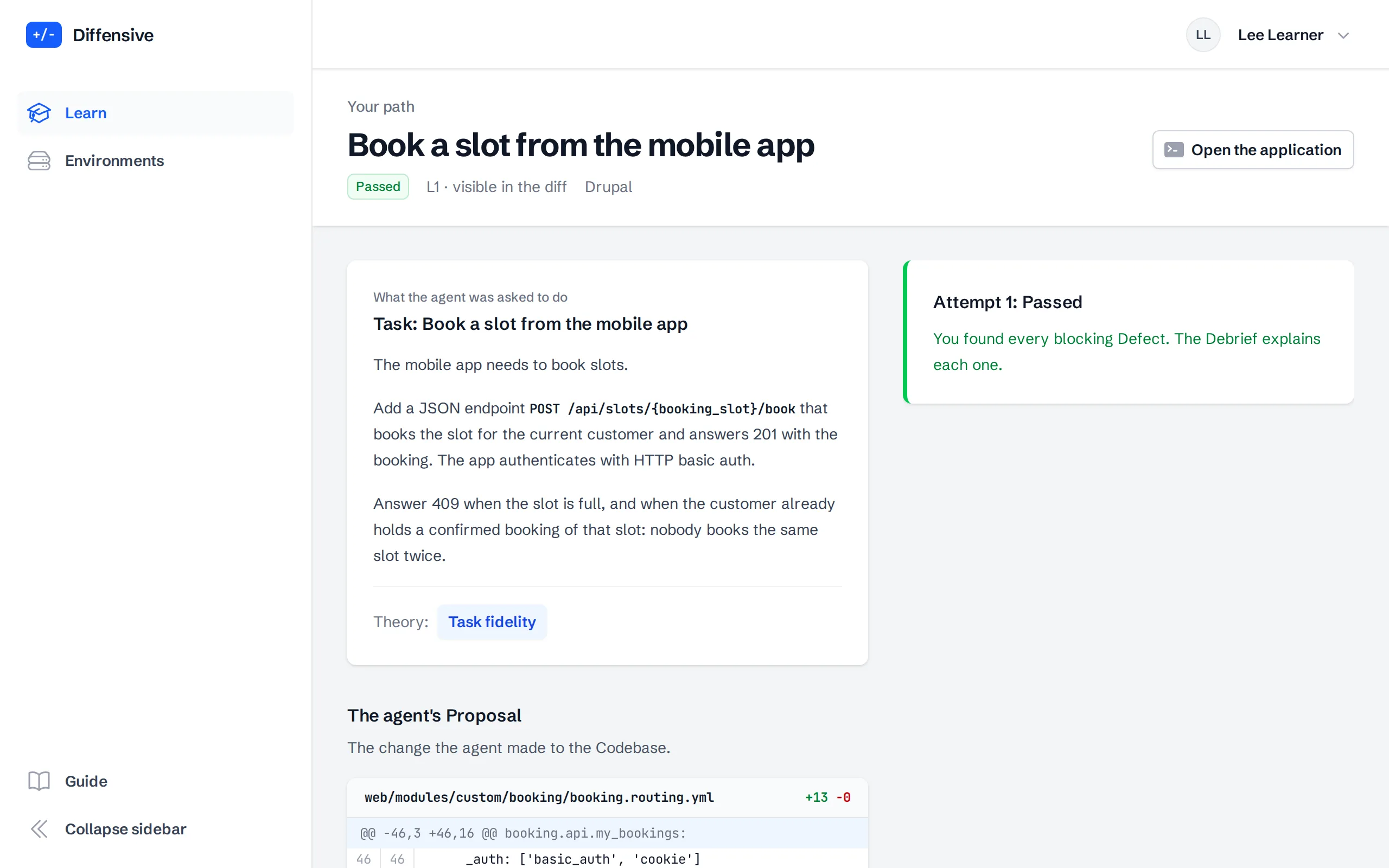
Choose your Verdict: approve, request changes or reject. Choose your Risk too: low, medium or high, how much human review the Proposal deserves. The Risk does not change whether you pass. Then Submit Attempt. Your Findings are matched against the Answer Key, the known Defects of the Proposal. Each Evidence also runs on the fix of each Defect, so a Finding is matched by what it proves, not only by its lines. When the correction is over, the page scrolls to the result and a notification tells the outcome.
You pass when you find every blocking Defect, with a Verdict the Exercise accepts and not too many wrong Findings.
-
Read the Debrief
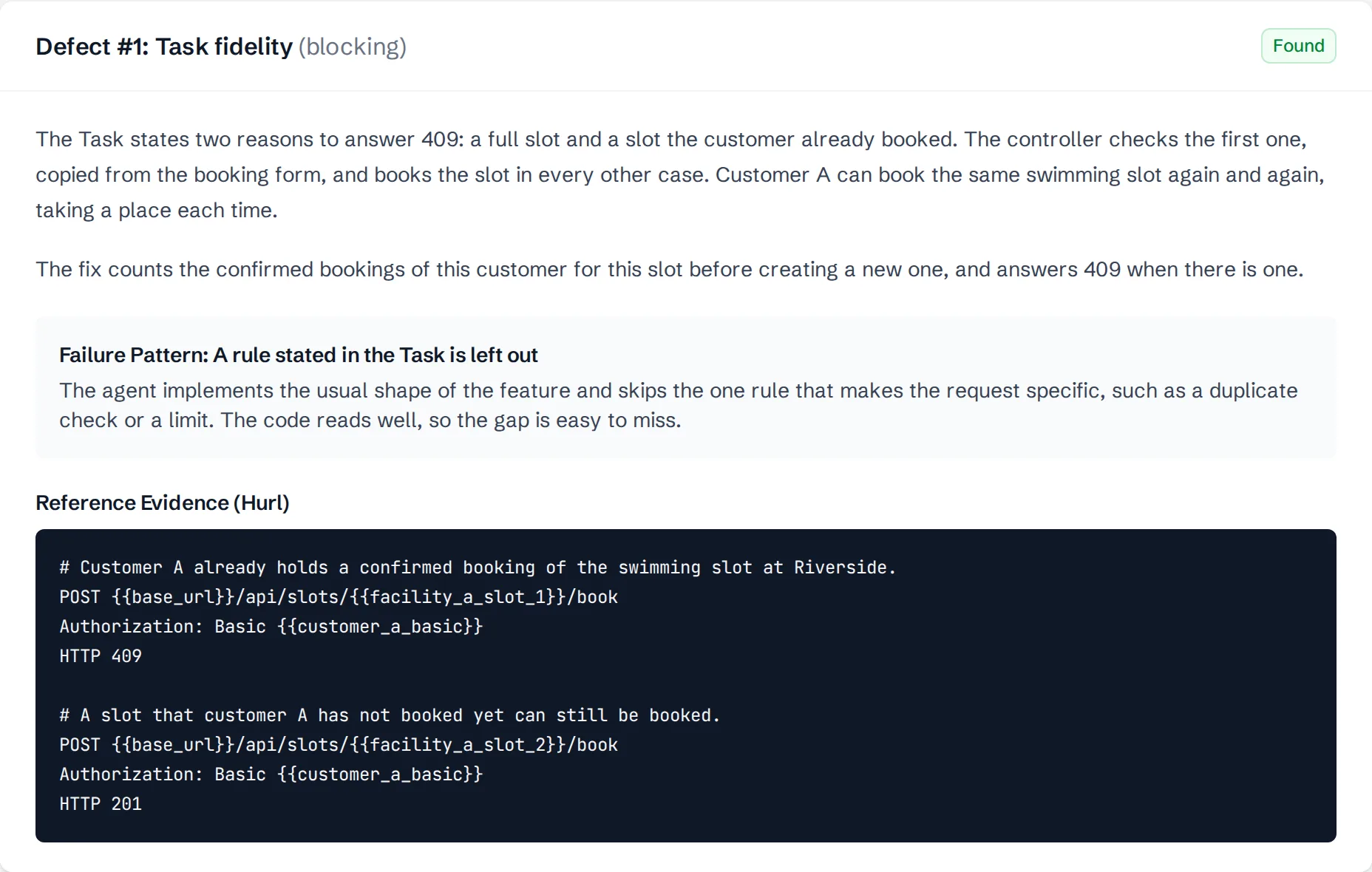
After you pass, or after your last Attempt, the Debrief explains each Defect, found or missed: what goes wrong, how the fix works, the Failure Pattern behind it and the reference Evidence. When the Exercise has an AI Review, it also tells whether each of your decisions on its Findings was right, with the explanation of the Author. The Risk section shows yours next to the expected one and why. When the Author wrote Solutions for a Defect, the Debrief lists the accepted and the wrong ones and tells how far your own way out is from them: Matches, Close, Far or Worse. This Solution Distance comes from an AI judge, with a short explanation and the Explainers to reread, and a Mentor can correct it. It is feedback only: it never changes the result of your Attempt. Compare everything with your Findings: the Debrief is where most of the learning happens.
-
Use the Hints
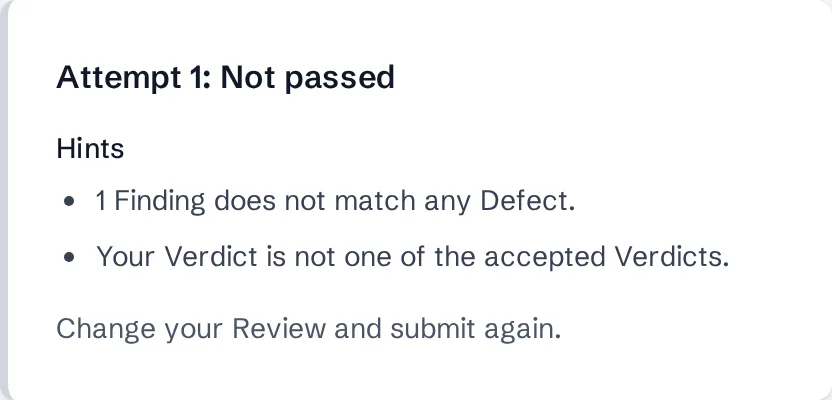
When an Attempt does not pass, you see Hints instead of the answers. They say how many blocking Defects you have not found yet, which ones need an Evidence or a blocking Severity, how many Findings match no Defect, and whether your Verdict is accepted. From the second Attempt, they also name the file and the Concept of each Defect you missed.
Your Findings, Verdict and Risk stay as you submitted them, and the Hints also appear in Your Review, next to your Findings: change or remove only what they point at. To write the Review again from the start, choose Clear the Review.
A Finding that matches no Defect of the Answer Key may be a real problem the Authors did not see. In an Organization it goes to a Mentor, who decides it and can write you feedback. No Mentor sees it when you are an Individual Learner, or when you started the Exercise outside your Organization and do not share your individual history (you can share it from your profile). Then a Finding with an Evidence that no Reference Fix explains is listed as Not verifiable without a Mentor: it does not change the outcome and does not count in your statistics. A Finding without Evidence stays a false positive: it counts like any other, and the Debrief tells you that nobody comments on its rationale.
-
Read the theory
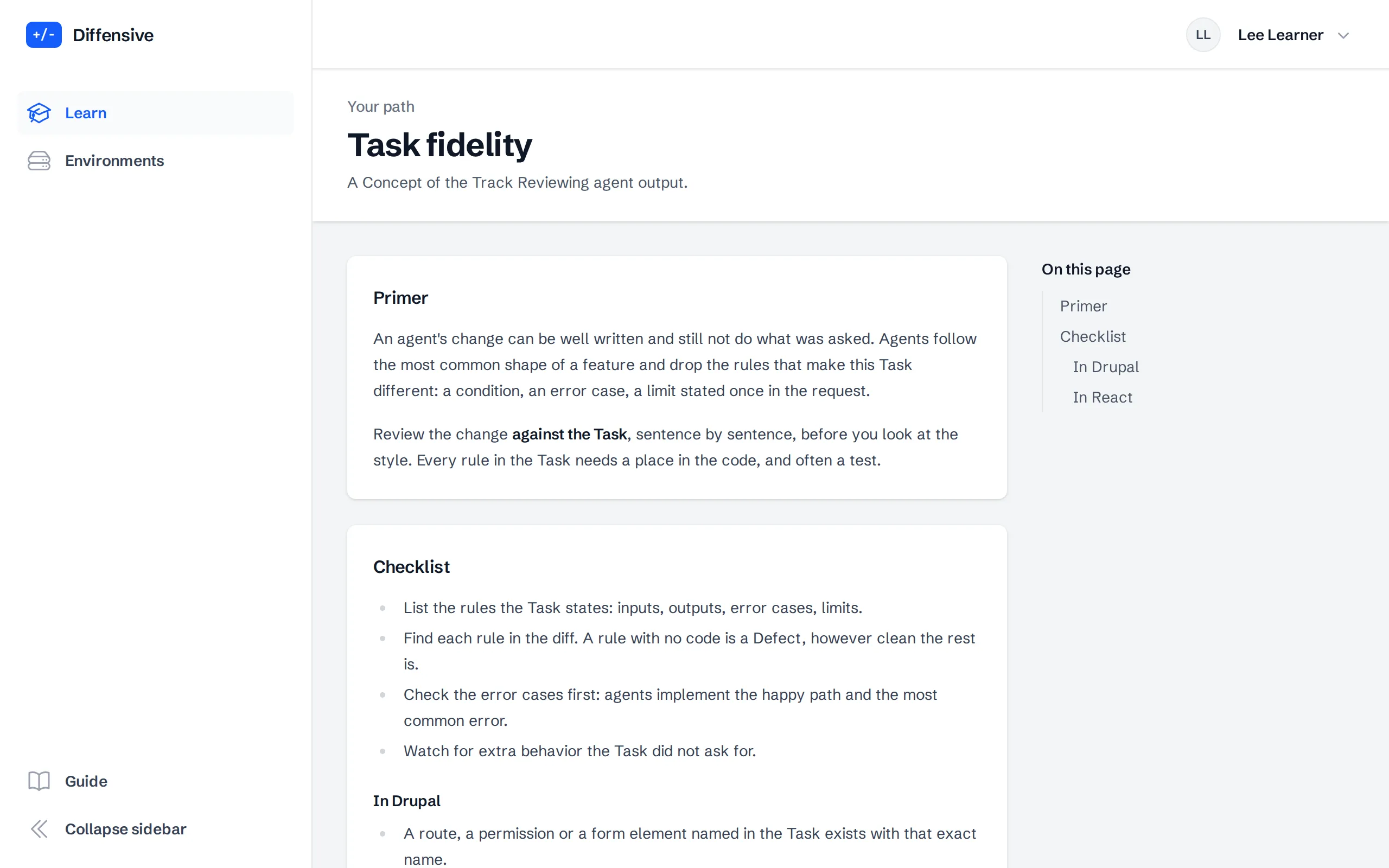
The page does not say which Concepts an Exercise practices until you have tried on your own: spotting the problem and naming its Concept is part of the review. From your second failed Attempt, when the Hints name the Concept of each Defect you missed, and in the Debrief, Theory under the Task links to those Concepts. A Concept has a short Explainer, a Checklist of what to verify, with the checks specific to Drupal, and the Failure Patterns: the ways agents usually get it wrong.
-
Follow your progress
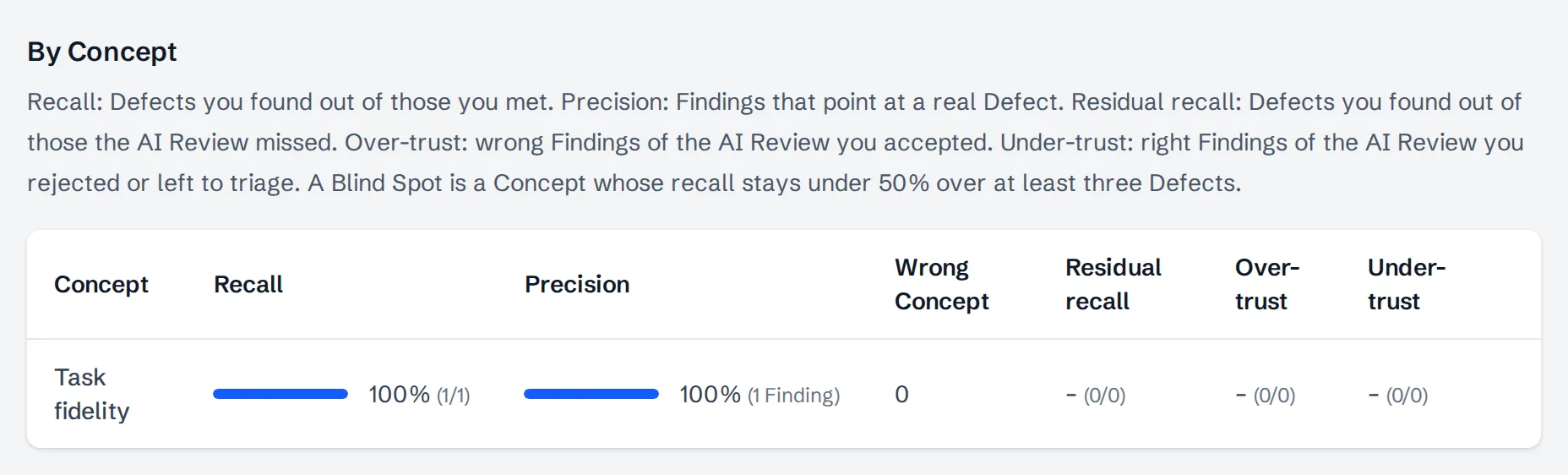
Once you conclude an Exercise, the Progress tab of your path shows your results by Concept: the recall, the Defects you found out of those you met, and the precision, the Findings that point at a real Defect. A Concept whose recall stays under 50% over at least three Defects is a Blind Spot, and the path suggests Exercises to practice it.
For Exercises with an AI Review, three more measures show how you work next to an AI reviewer: residual recall, the Defects you found among those the AI missed, over-trust, how often you accepted its wrong Findings, and under-trust, how often you rejected its real ones. Risk matched counts the Reviews whose Risk was the expected one.
-
Join an Organization
If you practice on your own and a company invites the email of your account, the Invitation page tells you the roles it offers and the email that becomes your primary email. Your Catalog progress and your Assessment stay as they are. If the Google account of that email is not linked to your account yet, use the Link the Google account of button for it and sign in with that account.
Under Your individual history, choose to share it with the Organization, so its Mentors see the work you did on your own, or Keep it private, so they see only that you concluded those Exercises before joining. There is no default. Then choose Accept, or Decline to remove the Invitation. An expired Invitation can only be declined.
While you are a member, your profile has the Share my individual history with checkbox for your Organization. Choose Save to change it: when it is off, the Mentors see none of that work.
-
Delete your account
If you practice on your own, choose Delete your account in the danger zone of your profile. The page lists what is deleted: your email, your name, your notes, your Google accounts and the Terms you accepted, and everything you wrote in your Reviews, your Evidence and your drafts, together with the Mentors' feedback. Your running Environments stop. What stays has no name on it: the Exercises you did, their outcomes and the Defects you found, for aggregate statistics. A Finding a Mentor confirmed as a new Defect stays with the Authors, with its location, justification and Evidence, and no name on it.
Tick I understand that my account and my personal data are deleted for good. and choose Delete my account, or Keep my account to go back. The welcome steps link to the page too, so you can delete your account before you accept the Terms. You can sign up again with the same Google account later, and you start from zero.
When you are a member of an Organization, the profile says to leave it first: an Organization Manager removes you from it. When your account holds a Platform role, Author or Platform Admin, the profile and the page say to ask a Platform Admin to remove your Platform roles first.